E-Paper CMS
  • Home
  • E-Paper
  • Web Stories
Subscriber Login
Menu
HomeWordPress
WordPress

How to Create a Survey Form with WordPress Survey Form Online

admin Jul 18, 2020 1 view
How to Create a Survey Form with WordPress Survey Form Online
Listen to this articleReady

Do you ever think about How to create a survey online? By creating a survey form on your WordPress website you can collect visitor's information by this. I mean just like subscribe form or any other leed generating idea. This is another way of generating the leed.

In the same way in WordPress, you can easily create a survey form. Yes, there is a WordPress plugin this will help you to create a survey form in minutes.

Additionally, WPForms "Surveys Polls" addon makes this process easy. WPForms this awsome addon helps you build your survey form easily.

Further, here in this article, I will explain to you how to create an online survey form in minutes with images.

Start here to make a survey form

The usefulness of a survey form

Before Create and set up a survey online, you must understand what types of content or business will suitable for the survey form.

  • Start a Comparison: When a visitor comes to your website, on the popup you can invite him to give his opinion on a specific product with a comparison. So, this will help you to take action.
  • Collect Feedback: Feedback is one of the major parts of any kind of online business. Yes, some visitors give you their valuable thoughts on your products. So, this might help your business.
  • Start a Discussion: If you have a topic niche business then you can add Discussions or questionary on your survey form this helps both you and the visitor. for ex: the question-answer surveys help visitors to improve their knowledge. On the other hand as a business owner, you can get Leeds and visitor's information.
  • Stay Objective: This is similar to a discussion. Here in this format, you can get ideas from site visitors this will help you to make improvements on your business.
  • Market Research: Really, buyers are real trend makers on the market. So, you can get more business idea from their thoughts, do remember every visitor/buyer have their own problem or thoughts.

So, there is no need to do invest any additional to make a survey form. Furthermore, that's all about to spend little time doing this.

Step 1: Create and set up a survey form online in WordPress

The first thing you’ll need to do to create a survey online is to install and activate the WPForms plugin. For more details, follow this step by step guide on how to install a plugin in WordPress.

In addition, you will need to install and activate the Surveys and Polls addon.

Hence, you will find this here on WPForms » Addon and find the one labeled Surveys and Polls Addon.

Click Install Addon and then Activate.
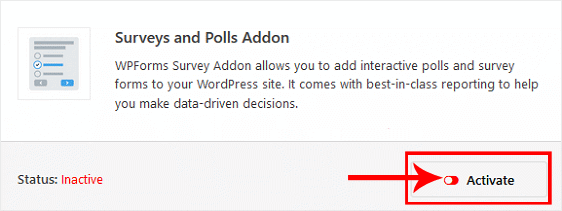
How to create a survey online

Upon Activation, you will need to create a new form, click "Add New" which is located under "WPForms" on the sidebar menu of your WordPress dashboard.

How to create a survey online

Here you can choose their premade "Create a Survey Form" template.

Upon clicking on "Create a Survey Form" now the WPForms create a survey form for you. Now you can see all the fields in the builder area.
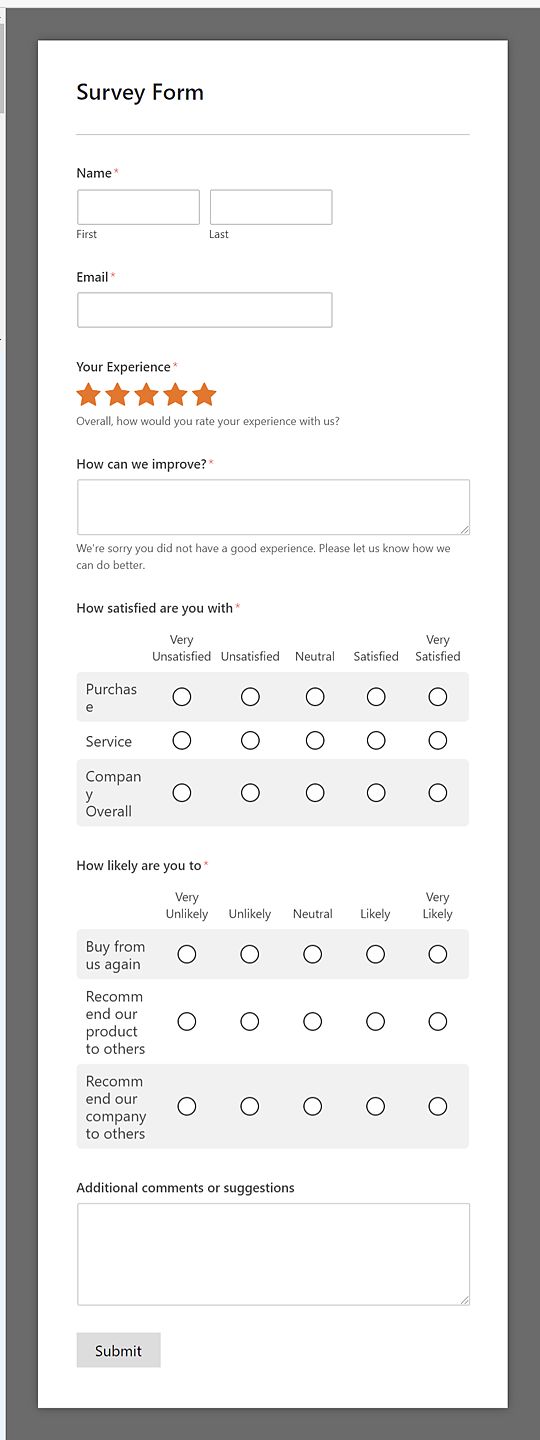
How to create a survey online

In fact, you can add fields or customize added fields as you want. It's all depending on your niche or your concept of the survey.

Step 2: Customize the Survey Form

Keep in mind, WPForms form builder has a drag-drop interface, so you can add fields by drag & drop action from left-hand panel to the right-hand panel.

If you want to customize any field on your survey form. Simply click on a particular form field. Now you see the field options on the left-hand panel. On the other hand, if you want to add more options to visitors. Click on blue plus mark under "Rows", on "Likert Scale" field. now one more row is added to your form. Now add a value to it as you want.
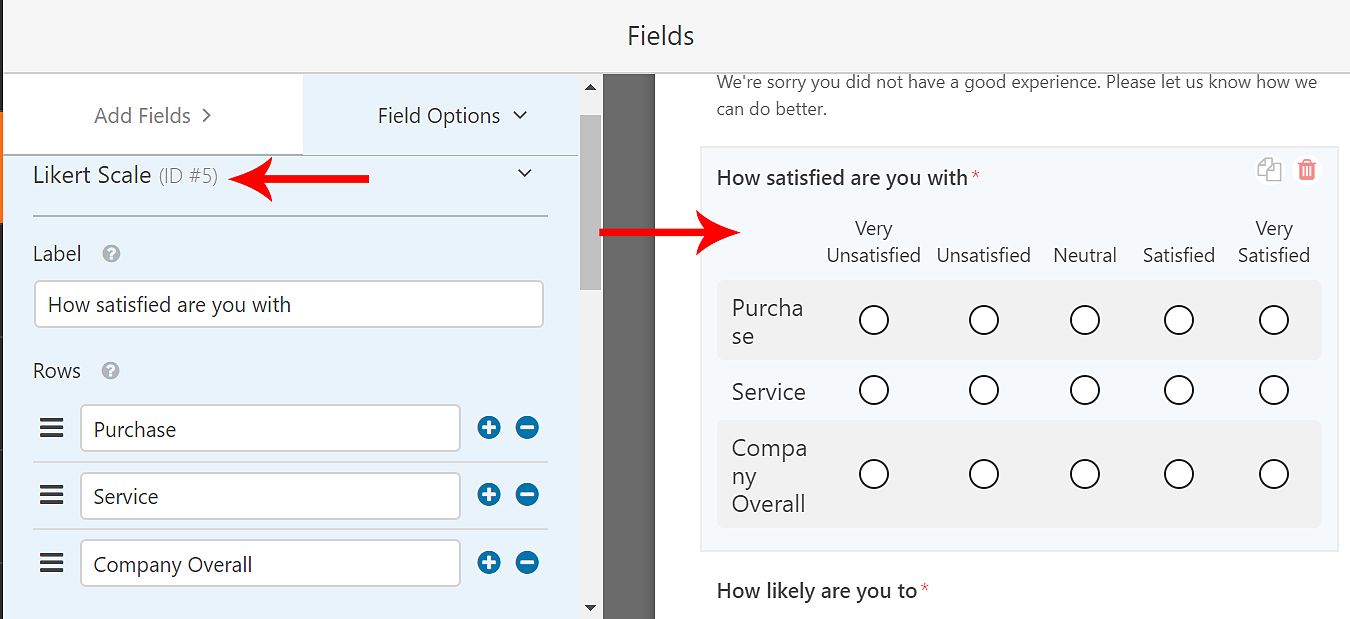
How to create a survey online

On the other hand, if you planned to make this form as a single-row rating scale. If so, enable "Make this a single-row rating scale" checkbox.

Now it's showing you columns only, the rows become inactivated.
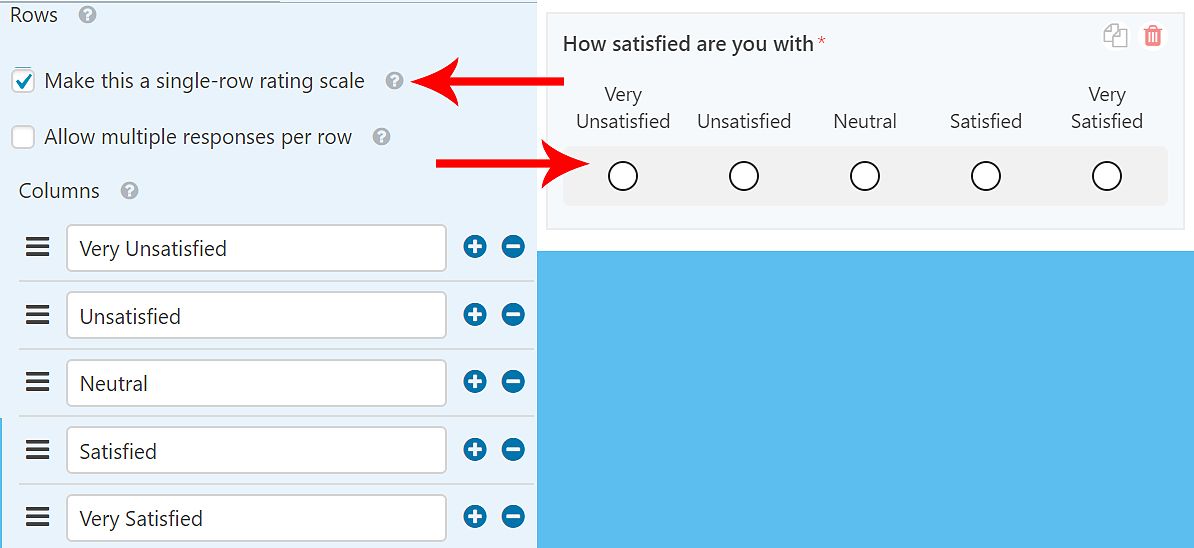
How to create a survey online

Step 3: Customize the Survey Form Rating Field

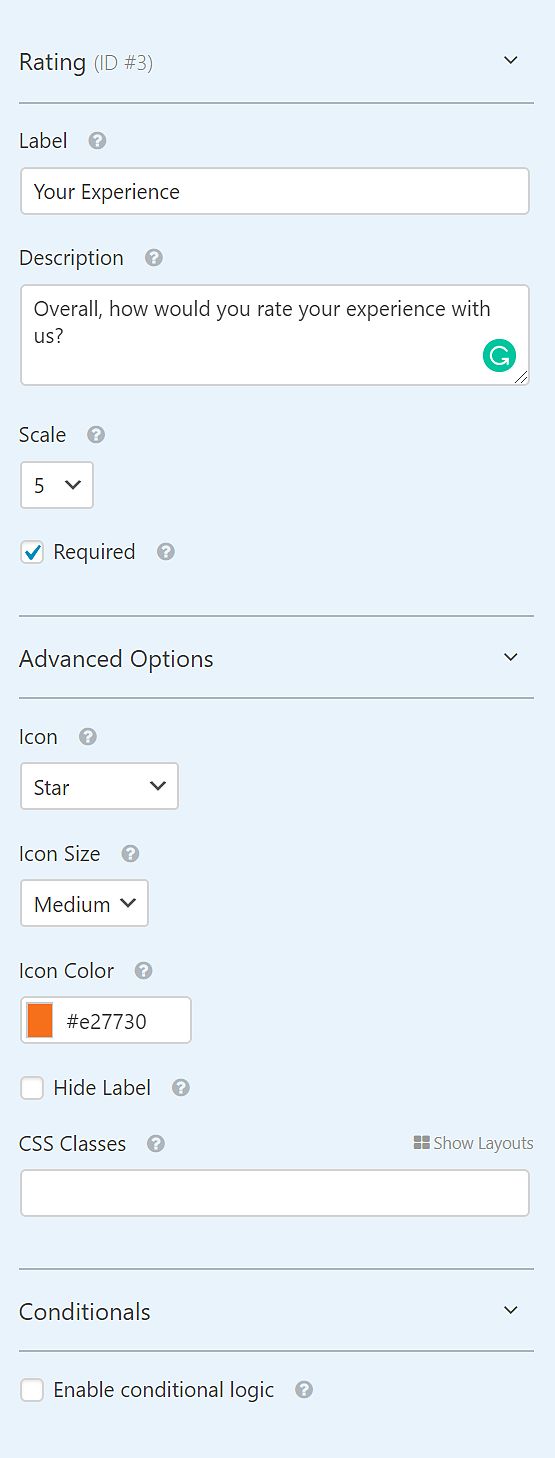
during now, customize the rating field. Click on "Rating Field" and take look over its field option on the left-hand panel.

Here you can change below options such as,

  • Label (Your Experience)
  • Description (Overall, how would you rate your experience with us?)
  • Scale (2-10 on the drop-down)

In the advanced options you can change the rating icon in the following ways:

  • Type. You can use a star, heart, thumb, or smiley face icon.
  • Size. You can choose the rating icon to be small, medium, or large.
  • Color. Use the color picker to change the icon color.
How to create a survey online

Step 4: Enable Survey Reporting

If you want to receive the real-time results by a visitor when he/she fill the form, then, you will need to enable survey reporting.

Enable survey reporting in WPForms

for instance, if you enable the "Enable Survey Reporting" checkbox, you can see all field's results separately.

WPForms survey question reporting

Here you can view the form entries by three options such as "View Survey Results" or "View Another Question" or particular visitors submission (View Entry).

By clicking on "View Survey Results" here you can see all entries results categorized by your form fields.

WPForms survey results dashboard

On the other hand, if you want to see particular field entry you can select it from the drop-down on "View Another Question". The field answer will show you on under "Entries"

View results for an individual survey field

Thirdly, to see a particular submission result, go to "WPForms" >> "Entries" and select on of entry, which looks like the image below.

View an individual WPForms survey entry

Step 5: Configure Your Form Settings

Finally, don't forget to Configure Your Form Settings. Here you can configure three options such as General, Notifications, and Confirmations

General: Here you can change the form name, add a description, customize the submit button, and other.

Notifications: In Notifications, you can add a new notification to a visitor. This is actually he gets a personalized message after he/she complete a survey submission. This one helps to let them know you received their submission. Go here to know more about personalized notifications.

Confirmations: Once site visitors complete your form, you can show them a message right after on the same page, take site visitors to another page on your website, or redirect visitors to another website. This is an instant step for visitors to confirm that their form has been submitted.

Here you can add a new message or configure the existing one. For the best experience for visitors, you can add a suitable message for your survey form here.

Customize the survey form confirmation message

Step 6: Add Your Form to Your Website

Once you complete the create a survey online form, now add it to a page or post.

To begin, create a new page or post, then click on the new block button, search WPForms on search box select newly created survey form from the drop-down, now the survey form placed automatically, and now publish the post.

Add a WPForms block to a WordPress page
Select a survey form in the WPForms block

Finally, your form will appear on your website like this.

Published WordPress survey form
To Start Making Your Survey Form online click here

Final Thoughts about creating a survey form on WordPress

In the beginning, I clearly said this online survey form is another way to get visitor's information. Though, this is helpful to get Leeds or invite them to know your upcoming product launch or any new service you are providing. Totally this is the best way to marketing.

And don’t forget, if you like this article, then please share this article on Facebook, Twitter, Pinterest, and other similar platforms.

Latest posts

Introducing the Power of AI-Powered GetResponse Email Newsletter:Best Email Marketing Software: A Comprehensive Comparison for Empowering Your Marketing EffortsHow to Make Sure Emails Don't Go to Spam? SMTP Using Amazon SESSend WordPress contact email with WP Mail SMTP ProTop 5 Email Marketing Service Provider for Small Business Marketers

Popular posts

01How to easily set up a Google Analytics Stats Dashboard on WordPress 10 views02How To Easily Set Up Form Conversion Tracking in WordPress (Google Analytics) 0 views03Do You Know Which Keywords People Use To Find Your Website on Google? 0 views04MonsterInsights: Track your Website by Google Analytics inside WordPress Dashboard 0 views

Cricket scores

No cricket matches are available.

Weather

Weather25°
Feels like
27°
Humidity
77%
Wind
14 km/h

Latest e-paper

E-Paper

2026-10-12

Facebook

Instagram

New edition: | 12 Oct 2026 Read now: https://200.wpwebsmartz.com/view.php?id=812 Oct 2026Discover a dedicated solution for digital newspaper management with the WPWebsmartz E-Paper CMS. This content management system is specifically designed for managing and publishing digital e-paper editions. Watch this video to explore the core capabilities of the WPWebsmartz E-Paper CMS for digital publishing and newspaper management. Learn more here: https://license.wpwebsmartz.com/epaper_standalone.php #WPWebsmartz #EPaper #EPaperCMS #DigitalPublishing #CMS #NewspaperCMS https://www.youtube.com/watch?v=vb34qg709OQ07 Oct 2026Discover the WPWebsmartz E paper CMS. Explore the dedicated system designed for managing and publishing your e-paper content online. Click the link to learn more about the features and capabilities of WPWebsmartz E paper CMS today. #WPWebsmartz #Epaper #CMS #DigitalPublishing https://license.wpwebsmartz.com/epaper_standalone.php07 Oct 2026Discover the WPWebsmartz E paper CMS. Explore the dedicated system designed for managing and publishing your e-paper content online. Click the link to learn more about the features and capabilities of WPWebsmartz E paper CMS today. #WPWebsmartz #Epaper #CMS #DigitalPublishing https://license.wpwebsmartz.com/epaper_standalone.php07 Oct 2026Are you looking for fully managed dedicated server hosting? A managed dedicated server is always required to get the best performance for your platform. Check out our full Liquid Web Managed Dedicated Server Hosting review to learn more. #LiquidWeb #DedicatedServer #WebHosting #ManagedHosting #HostingReview https://wpwebsmartz.com/liquidweb-fully-managed-dedicated-server-hosting/03 Oct 2026

YouTube

Add the YouTube URL or content URLs in Settings → Articles.

Featured posts

Top Staff Augmentation Companies in India
How Does WooCommerce Product Gallery Support Self-Hosted and Vimeo Videos?The Role of Server-Level Caching in WordPress PerformanceWhy Your Website Needs a Security Plan, Even If You Don't Handle Payments?Why Colour Choices Matter in Web Design

Horoscope

♈ಮೇಷ♉ವೃಷಭ♊ಮಿಥುನ♋ಕರ್ಕಾಟಕ♌ಸಿಂಹ♍ಕನ್ಯಾ♎ತುಲಾ♏ವೃಶ್ಚಿಕ♐ಧನು♑ಮಕರ♒ಕುಂಭ♓ಮೀನು

E-Paper clips

The latest editions do not contain hotspot clips yet.

Web Stories

8 slidesData-Safe WordPress Hosting with Built-In Backup Support 

Reader Survey

Reader Survey

Register your interest and tell us how to contact you.

Your name
Your email address
Which session will you attend?

Related Stories

Boost WordPress Speed & Performance: A Comprehensive Guide
WordPress

Boost WordPress Speed & Performance: A Comprehensive Guide

Introduction of WordPress Performance and Speed In today's fast-paced digital landscape, website performance plays a crucial role in engaging visitors and achieving online success. When it comes to WordPress, optimizing the speed and performance of your website is essential for providing an exceptional user experience.

WordPress Security Guide – Step by Step: Protect Your Website with Essential Measures
WordPress

WordPress Security Guide – Step by Step: Protect Your Website with Essential Measures

Introduction: WordPress is an incredibly popular content management system, powering millions of websites across the globe. However, its widespread use also makes it a prime target for hackers and malicious actors. To safeguard your website and protect sensitive data, it is crucial to implement comprehensive security m

Internal Linking Plugins for WordPress: Boost Your Website's SEO and User Experience
WordPress

Internal Linking Plugins for WordPress: Boost Your Website's SEO and User Experience

Introduction When it comes to optimizing your WordPress website for search engines and improving user experience, internal linking plays a crucial role. By strategically linking relevant pages within your site, you can enhance site navigation, increase engagement, and boost your search engine rankings. However, managin

Unlocking the Potential of a Membership Website: Benefits and Best Content Types
WordPress

Unlocking the Potential of a Membership Website: Benefits and Best Content Types

Introduction: In today's digital era, membership websites have become a popular way to monetize content and build a loyal community. With the ability to provide exclusive access to premium content and unique benefits, membership websites offer a lucrative opportunity for content creators and businesses. In this article

12 Best Keyword Research Tools: Unleashing the Power of Keywords
WordPress

12 Best Keyword Research Tools: Unleashing the Power of Keywords

Introduction Best Keyword Research Tool In the ever-evolving digital landscape, keyword research remains a crucial element in optimizing your online presence. Understanding the search intent behind keywords can significantly impact your website's visibility and organic traffic. To simplify this process, numerous keywor

Building a WordPress Website in Accuweb Cloud VPS Hosting: A Step-by-Step Guide
WordPress

Building a WordPress Website in Accuweb Cloud VPS Hosting: A Step-by-Step Guide

Introduction of Accuweb Cloud VPS Hosting WordPress has emerged as a popular choice for building websites due to its flexibility, user-friendliness, and extensive plugin ecosystem. When combined with the power and scalability of Accuweb Cloud VPS Hosting, you can create a high-performance WordPress website that meets y

Latest NewsLive updates
  • Home
  • E-Paper
  • Web Stories
Logo

© 2025 E-Paper CMS. All rights reserved. | Developed by sunilubar.974@gmail.com

Epaper CMS by WPWebsmartz