E-Paper CMS
  • Home
  • E-Paper
  • Web Stories
Subscriber Login
Menu
HomeWordPress
WordPress

Introducing the all-new MemberPress Courses!

admin Oct 07, 2020 1 view
Introducing the all-new MemberPress Courses!
Listen to this articleReady

This article is dedicated to those who are run online Courses or planning to do in the near future. If so, Memberpress online courses addon is fulfilled your needs.

Yes, in this article we are explaining to you in brief, how to create an online course without knowing of complicated coding or script language?

For this you should have only one thing which is MemberPress pro plan

In addition, MemberPress is a WordPress plugin. By this plugin, you can create membership websites in minutes. Also now MemberPress WordPress plugin provides the MemberPress Courses addon.

By this plugin, you can easily create online courses on your WordPress website. Or turn your existing WordPress website into an online course website.

The first thing is first, To run an online course website you need to install the MemberPress plugin with a Basic plan. Their plan is started at $ 149 / year.

Video Tutorial

https://www.youtube.com/watch?v=PP63kd0SUkw

Install MemberPress Courses Add-on

Before installing the MemberPress Courses addon, you will need to install the MemberPress plugin with a basic plan. To know how to install a WordPress plugin so click here. 

Followed by installing the MemberPress plugin now you will see the Courses button under MemberPress on the side bar menu of your WordPress dashboard.
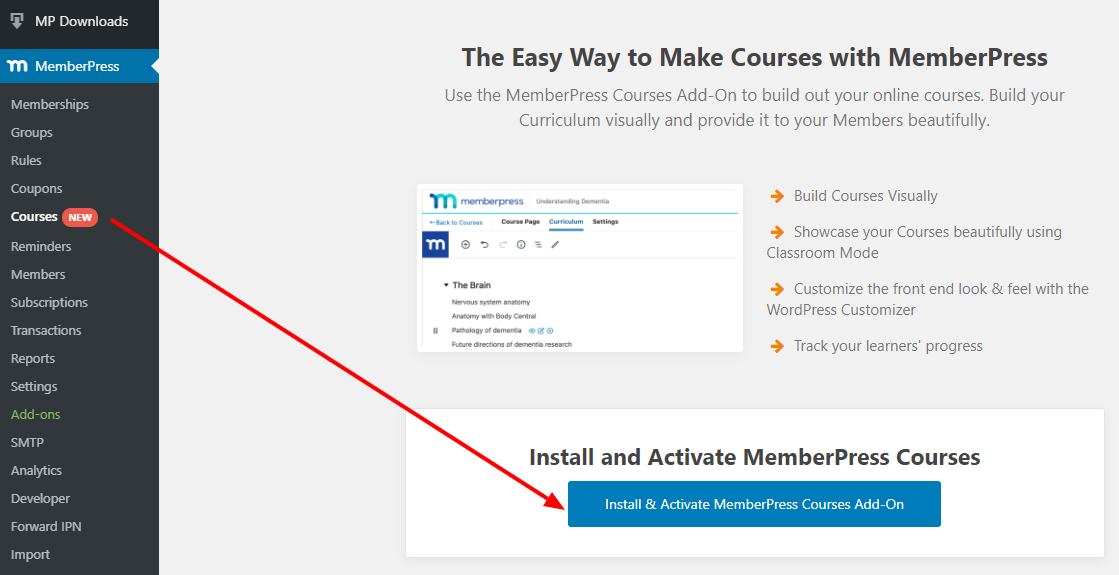
Install the MemberPress Courses add-on

So, here click on "Install and Activate Memberpress Course Add on", it will be installed and activated automatically. After installation and activation of the Memberpress Course addon, you will be redirected to the Courses page.

Course Page
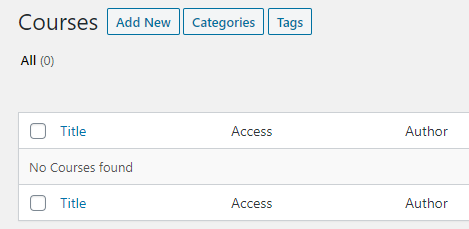
MemberPress Courses page

Here you start your online courses, so, click on add new. Then give a name to your new course and enter the detailed description of your course.
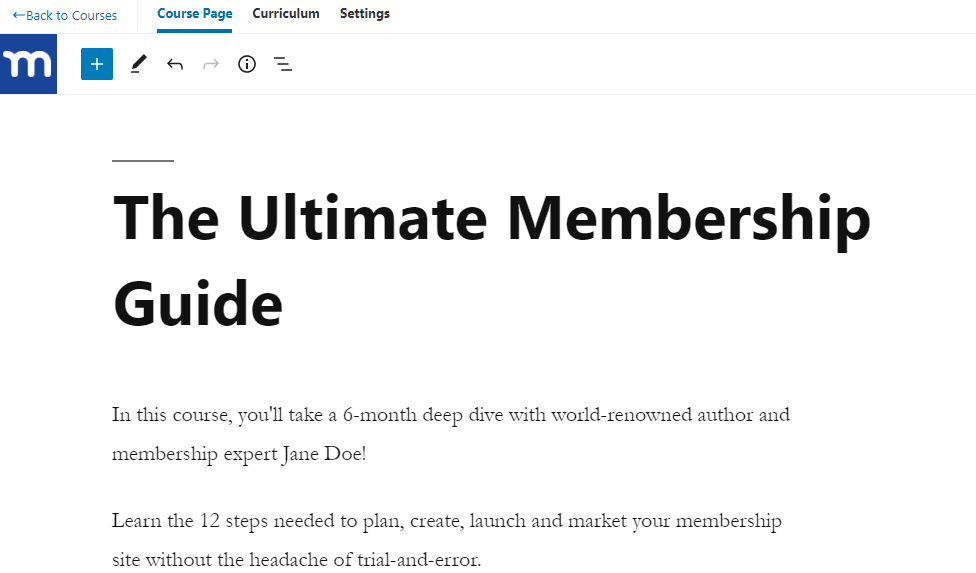
Create a new MemberPress course

Add a Course Image for your course

Add a featured image to a MemberPress course

If you want to add an image to your online course to attract your course listing page. Then set a featured image to your course. This is just like a new blog post-editing, you can find it on your sidebar under the setting button.

In addition, the featured image is looks like is in the below image.

MemberPress course featured image preview

Categorizing/Tagging Your Courses

In addition, you can categorize and add tags to your courses. This will helps users to find the categorize courses.

If you have multiple online Courses, you might want to Categorize or Tag them to help you organize them. This will be particularly useful if you need to provide access to multiple Courses when a Member buys a Membership in MemberPress.

Back on the MemberPress > Courses page, you'll see buttons at the top for Categories and Tags.

Categorize and tag MemberPress courses

Curriculum

Next in the curriculum tab, you can add Sections and Lessons of your course.

Add Section

Here you will need to add sections first, this means it's the group of your lessons.
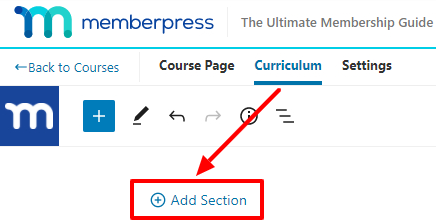
Add a section to a MemberPress course

Take a look at the below image, it will some examples of your lessons sections. Here you can add lessons by expanding the sections.
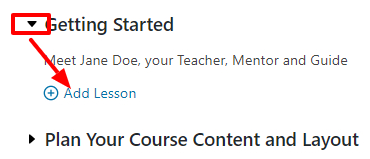
MemberPress course section examples

After creating the lessons, your lessons are showed up on the sidebar of your WordPress dashboard. You can search for the existing lessons by the search box.
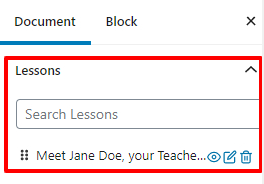
MemberPress course lessons in the WordPress dashboard

In addition you can place the lessons to any other sections by drag and drop, for this use grid icon which is on the left.

memberpress online courses

Course Settings

In the next tab, you can see the settings of the particular course. There you see the Include in Course Listing at first turn it in to enable mode. This one is the front-end display of your online courses.

memberpress online courses

Sales Page 

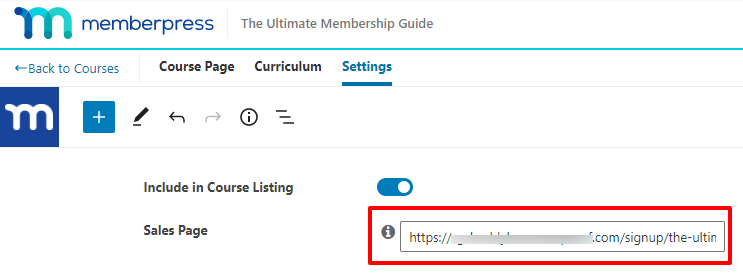
Now goes to the second setting it will be Sales Page URL setting. This means when a user wants to buy a course from you. If he clicks on the particular course then it takes them to the payment page, so here in this sales page settings, you can enter your plan page URL.

So, your sales page URL located here on the Membership Registration URL is MemberPress > Memberships. There you will see the membership URL this is your sales page URL.

memberpress online courses

Copy the URL and past it in to here in front of sales page.
memberpress online courses

Classroom Mode settings

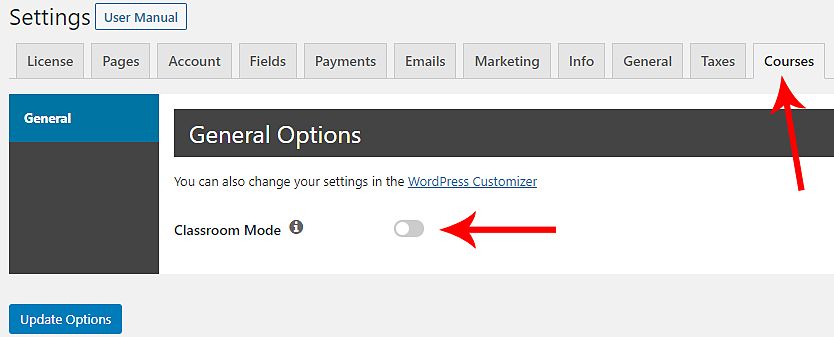
This option is a great way to give the best look for your courses. After enabling this option the courses display on the front-end within a self-contained interface.

So, you will find this option on MemberPress > Settings > Courses tab for the best user experience and design.
memberpress online courses

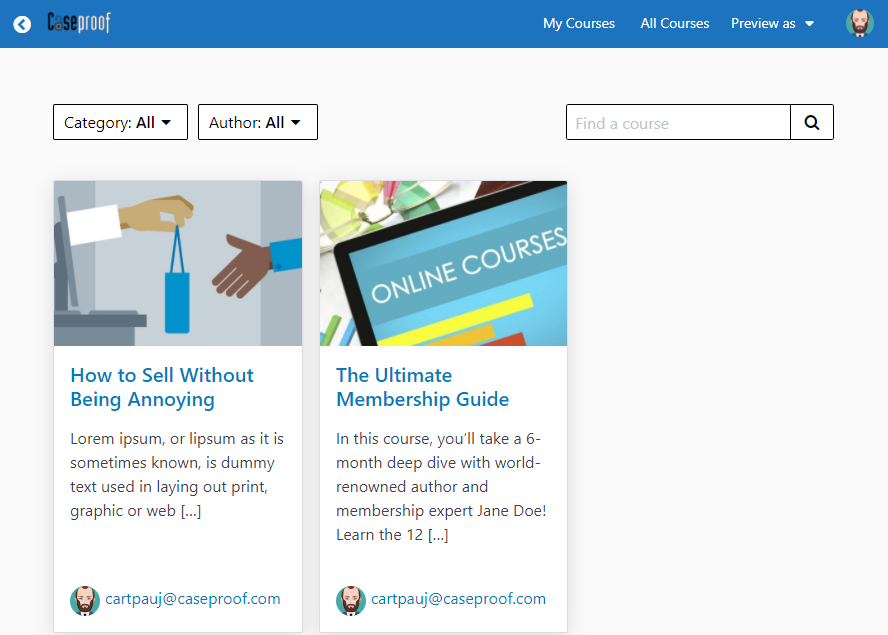
So, after enabling the classroom mode your courses are looks like this
memberpress online courses

Final view of a course

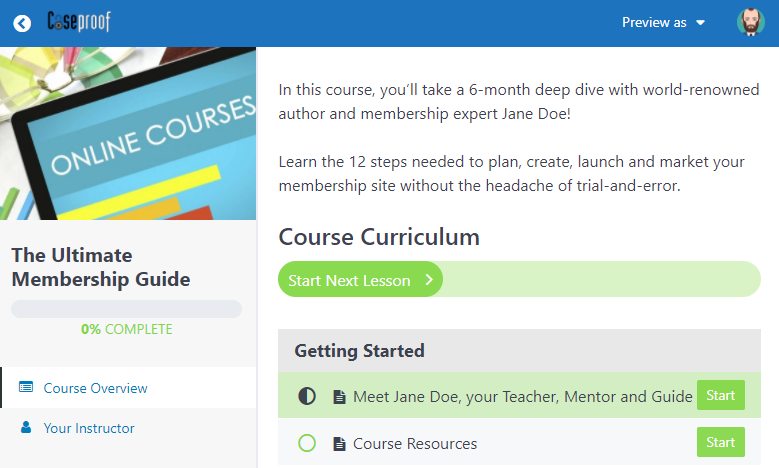
When a member logging into their account and he moves to "My Course" and clicks on a particular course then the preview of the particular course looks likes showed in the image below.
memberpress online courses

Furthermore, they can see the Course overview, navigation, instructor, and see their progress through the Course.

In addition not only member can see their progress on any course. The admin also can see the progress of any members. For this, the site admin can go here on WordPress Dashboard > Users page. Then click "Edit" on that User and scroll down until you see the Course Information section.
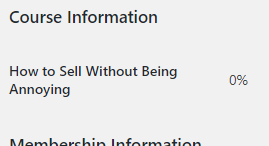
memberpress online courses
Take advantage of this addon

Latest posts

Introducing the Power of AI-Powered GetResponse Email Newsletter:Best Email Marketing Software: A Comprehensive Comparison for Empowering Your Marketing EffortsHow to Make Sure Emails Don't Go to Spam? SMTP Using Amazon SESSend WordPress contact email with WP Mail SMTP ProTop 5 Email Marketing Service Provider for Small Business Marketers

Popular posts

01How to easily set up a Google Analytics Stats Dashboard on WordPress 10 views02How To Easily Set Up Form Conversion Tracking in WordPress (Google Analytics) 0 views03Do You Know Which Keywords People Use To Find Your Website on Google? 0 views04MonsterInsights: Track your Website by Google Analytics inside WordPress Dashboard 0 views

Cricket scores

No cricket matches are available.

Weather

Weather28°
Feels like
30°
Humidity
54%
Wind
13 km/h

Latest e-paper

E-Paper

2026-10-12

Facebook

Instagram

New edition: | 12 Oct 2026 Read now: https://200.wpwebsmartz.com/view.php?id=812 Oct 2026Discover a dedicated solution for digital newspaper management with the WPWebsmartz E-Paper CMS. This content management system is specifically designed for managing and publishing digital e-paper editions. Watch this video to explore the core capabilities of the WPWebsmartz E-Paper CMS for digital publishing and newspaper management. Learn more here: https://license.wpwebsmartz.com/epaper_standalone.php #WPWebsmartz #EPaper #EPaperCMS #DigitalPublishing #CMS #NewspaperCMS https://www.youtube.com/watch?v=vb34qg709OQ07 Oct 2026Discover the WPWebsmartz E paper CMS. Explore the dedicated system designed for managing and publishing your e-paper content online. Click the link to learn more about the features and capabilities of WPWebsmartz E paper CMS today. #WPWebsmartz #Epaper #CMS #DigitalPublishing https://license.wpwebsmartz.com/epaper_standalone.php07 Oct 2026Discover the WPWebsmartz E paper CMS. Explore the dedicated system designed for managing and publishing your e-paper content online. Click the link to learn more about the features and capabilities of WPWebsmartz E paper CMS today. #WPWebsmartz #Epaper #CMS #DigitalPublishing https://license.wpwebsmartz.com/epaper_standalone.php07 Oct 2026Are you looking for fully managed dedicated server hosting? A managed dedicated server is always required to get the best performance for your platform. Check out our full Liquid Web Managed Dedicated Server Hosting review to learn more. #LiquidWeb #DedicatedServer #WebHosting #ManagedHosting #HostingReview https://wpwebsmartz.com/liquidweb-fully-managed-dedicated-server-hosting/03 Oct 2026

YouTube

Add the YouTube URL or content URLs in Settings → Articles.

Featured posts

Top Staff Augmentation Companies in India
How Does WooCommerce Product Gallery Support Self-Hosted and Vimeo Videos?The Role of Server-Level Caching in WordPress PerformanceWhy Your Website Needs a Security Plan, Even If You Don't Handle Payments?Why Colour Choices Matter in Web Design

Horoscope

♈ಮೇಷ♉ವೃಷಭ♊ಮಿಥುನ♋ಕರ್ಕಾಟಕ♌ಸಿಂಹ♍ಕನ್ಯಾ♎ತುಲಾ♏ವೃಶ್ಚಿಕ♐ಧನು♑ಮಕರ♒ಕುಂಭ♓ಮೀನು

E-Paper clips

The latest editions do not contain hotspot clips yet.

Web Stories

8 slidesData-Safe WordPress Hosting with Built-In Backup Support 

Reader Survey

Reader Survey

Register your interest and tell us how to contact you.

Your name
Your email address
Which session will you attend?

Related Stories

Boost WordPress Speed & Performance: A Comprehensive Guide
WordPress

Boost WordPress Speed & Performance: A Comprehensive Guide

Introduction of WordPress Performance and Speed In today's fast-paced digital landscape, website performance plays a crucial role in engaging visitors and achieving online success. When it comes to WordPress, optimizing the speed and performance of your website is essential for providing an exceptional user experience.

WordPress Security Guide – Step by Step: Protect Your Website with Essential Measures
WordPress

WordPress Security Guide – Step by Step: Protect Your Website with Essential Measures

Introduction: WordPress is an incredibly popular content management system, powering millions of websites across the globe. However, its widespread use also makes it a prime target for hackers and malicious actors. To safeguard your website and protect sensitive data, it is crucial to implement comprehensive security m

Internal Linking Plugins for WordPress: Boost Your Website's SEO and User Experience
WordPress

Internal Linking Plugins for WordPress: Boost Your Website's SEO and User Experience

Introduction When it comes to optimizing your WordPress website for search engines and improving user experience, internal linking plays a crucial role. By strategically linking relevant pages within your site, you can enhance site navigation, increase engagement, and boost your search engine rankings. However, managin

Unlocking the Potential of a Membership Website: Benefits and Best Content Types
WordPress

Unlocking the Potential of a Membership Website: Benefits and Best Content Types

Introduction: In today's digital era, membership websites have become a popular way to monetize content and build a loyal community. With the ability to provide exclusive access to premium content and unique benefits, membership websites offer a lucrative opportunity for content creators and businesses. In this article

12 Best Keyword Research Tools: Unleashing the Power of Keywords
WordPress

12 Best Keyword Research Tools: Unleashing the Power of Keywords

Introduction Best Keyword Research Tool In the ever-evolving digital landscape, keyword research remains a crucial element in optimizing your online presence. Understanding the search intent behind keywords can significantly impact your website's visibility and organic traffic. To simplify this process, numerous keywor

Building a WordPress Website in Accuweb Cloud VPS Hosting: A Step-by-Step Guide
WordPress

Building a WordPress Website in Accuweb Cloud VPS Hosting: A Step-by-Step Guide

Introduction of Accuweb Cloud VPS Hosting WordPress has emerged as a popular choice for building websites due to its flexibility, user-friendliness, and extensive plugin ecosystem. When combined with the power and scalability of Accuweb Cloud VPS Hosting, you can create a high-performance WordPress website that meets y

Latest NewsLive updates
  • Home
  • E-Paper
  • Web Stories
Logo

© 2025 E-Paper CMS. All rights reserved. | Developed by sunilubar.974@gmail.com

Epaper CMS by WPWebsmartz