E-Paper CMS
  • Home
  • E-Paper
  • Web Stories
Subscriber Login
Menu
HomeMonsterinsights
Monsterinsights

Powerful Scroll Depth Tracking by Google Analytics by MonsterInsights

admin May 04, 2020 1 view
Powerful Scroll Depth Tracking by Google Analytics by MonsterInsights
Listen to this articleReady

Do you have ever heard about scroll depth tracking?

If yes or not i think this article definitely helpful to you.

Some FAQ about Scroll Depth Tracking

What is the Scroll Depth Tracking

This service allows you to see how far a user scrolls on any page. you can easily see when your site visitors scroll 25%, 50%, 75%, and 100% down the page. This data helps you see if your visitors are actually reading your long posts and when they lose interest,

Why the Scroll Depth Tracking

When a user comes to your blog page and he is scrolling the page top-bottom while he is reading the blog post. But you don't know what's happening on your blog. This kind of tracking system does clear to know you all these things.

What is the benefits?

If you are having lots of long articles on your blog, scroll depth tracking is very important to know whether people are really engaged in your content or not.

In google analytics, you can see the scroll depth tracking system. But whole things as a beginner, this is nearly impossible and very tough for experienced ones.

But now monsterInsights WordPress plugin gives you this type of service very easily. You can track scroll depth tracking inside your Wordpress dashboard with few clicks.

Step 1. Scroll Depth Tracking Setup in WordPress with MonsterInsights

After install and activate of MonsterInsights version 7.6.0 or later. Link MonsterInsights (Read this post: how to link MonsterInsights plugin to google analytics ) to your google analytics account to getting all types of tracking service here in Wordpress dashboard.

Upon activation, go to Insights » Settings page and then click on the Engagement tab. As shown in the screenshot below, you will see the scroll tracking option enabled by default.
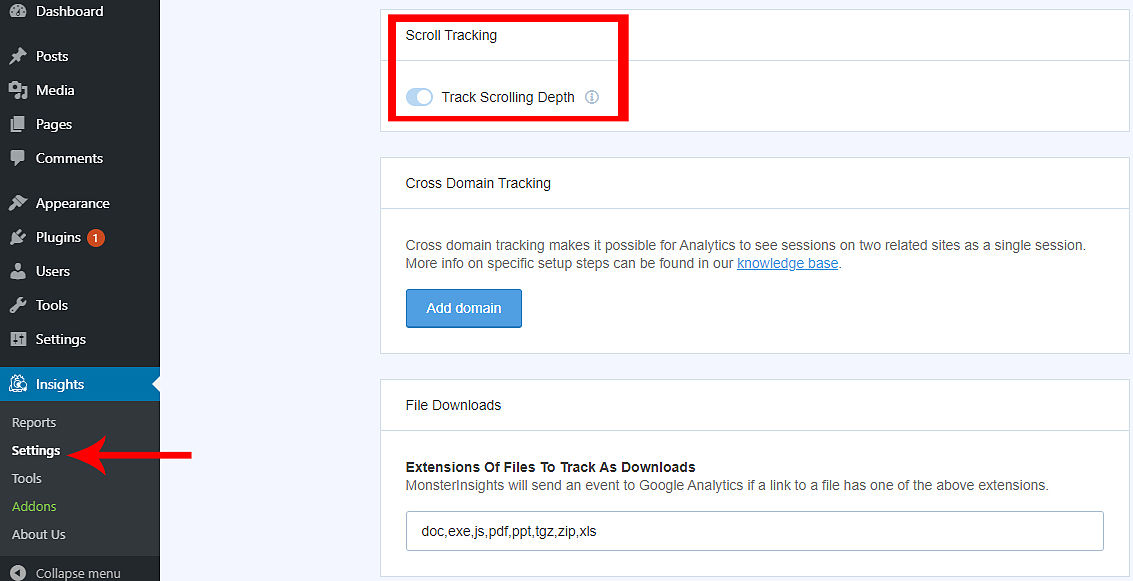
scroll depth tracking

Step 2. Find Scroll Tracking Depth Results in MonsterInsights

Now you can see the scroll tracking stats are bottom of the MonsterInsights publishers report after Interests section. and other helpful stats right inside your WordPress admin area.
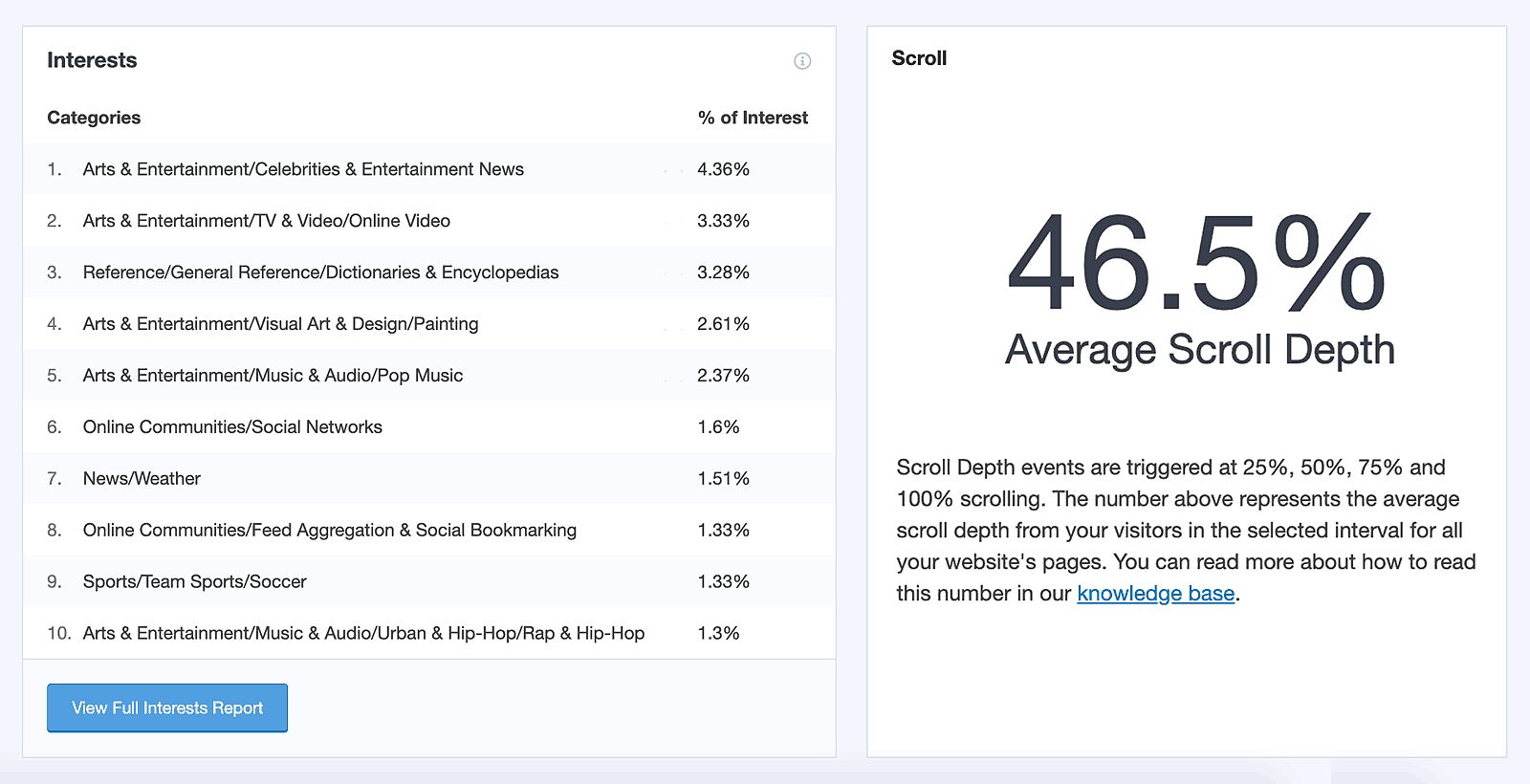
scroll depth tracking

It gives you a better picture of how your visitors are interacting with your content and helps you decide to take action over your less reading content.

Please Note: While Google Analytics is properly set up and tracking everything, it does not send the data back to WordPress immediately. Depending on the size of your website, it can take between a few hours to 24 hours for reports to populate.

Step 3. Set up Scrolling Data in Google Analytics

The setup is starting in Google Tag Manager. Here don't confusion, Google analytics only show you the data. But the whole setup is done in Google tag manager.

Create a new account in google tag manager with the domain name. Select WEB under "Where to use container"
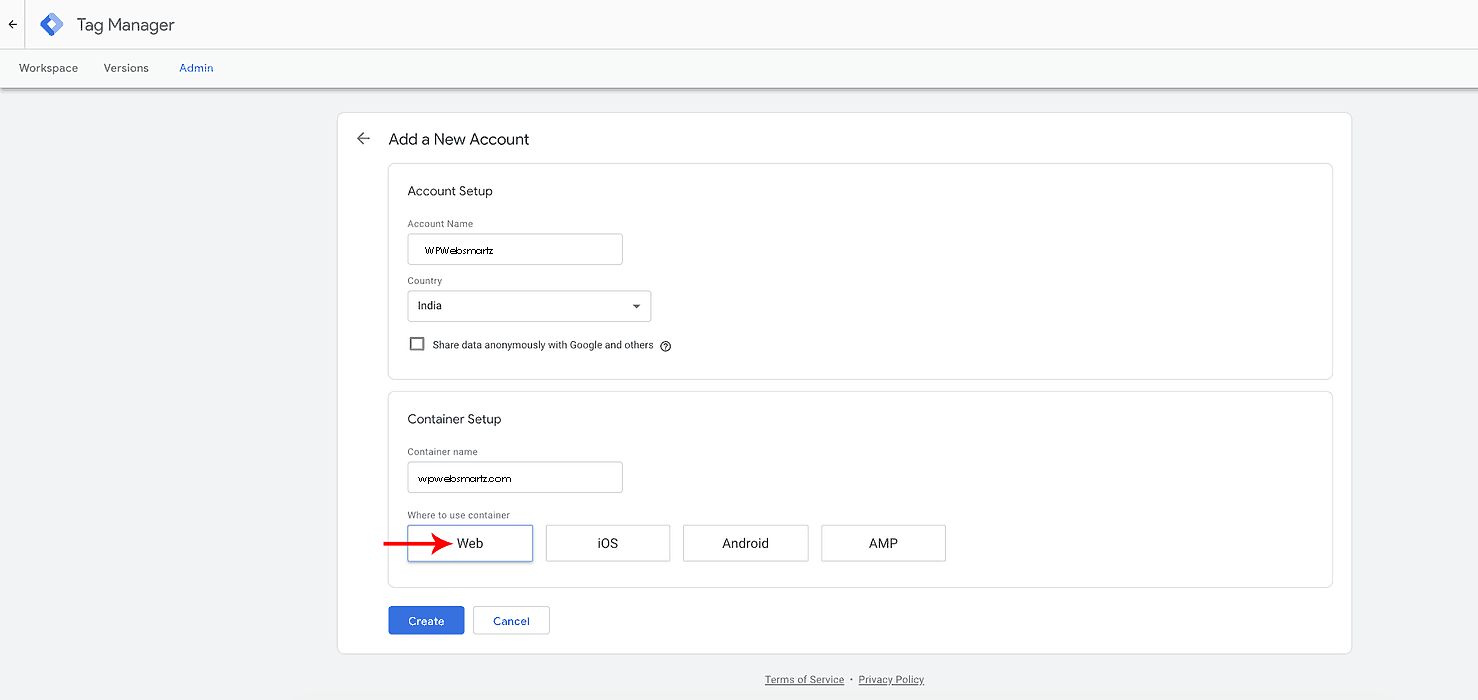
Google tag manager

After creating the account you will be prompted to add two types code to header and body section of your website. Add both codes to the correct place.
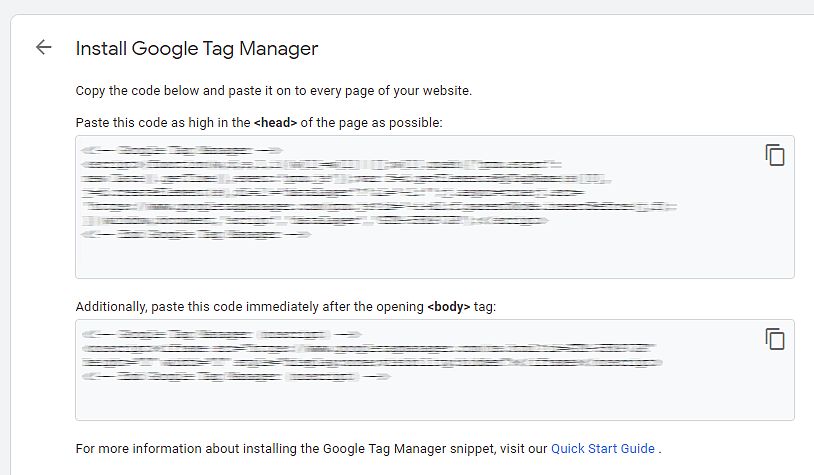
Google tag manager

Step 4. Creating trigger

Now you need to head over to the “Triggers” section of your account, and click on to create a trigger. Give a name it then clicks the edit button upper right side.

In the chose trigger type you can see scroll depth under "User Engagement" click scroll depth there. Then enable Vertical Scroll Depths. Add percentage valuers like 25,50,75,100 don't put any marks after 100 (ex:,.). Select all pages under "This trigger fires on" then click save.
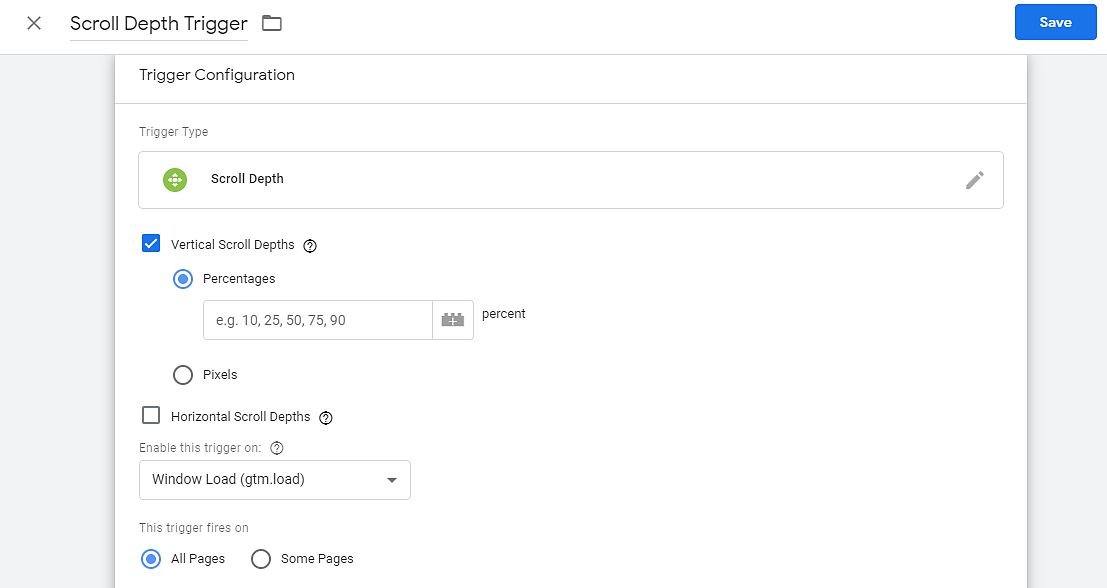
scroll depth tracking

Step 5. Add Variables

Now go to the Variables section in the menu section. Enable these values under the scrolling section.

Configure Google Tag Manager built-in scroll variables
  1. Scroll Depth Threshold: A numeric value that caused the scroll depth trigger to fire.
  2. Scroll Depth Units: The unit of scroll depth – pixels or in most cases percentage.
  3. Scroll Direction: The direction of the scroll – vertical or horizontal.

Step 6. Create an event tag

This will be the final section of this setup. In this step now you link your google tag manager account to google analytics account.

Go to the tag section's main menu. Click the new tag button, name your tag then click the edit button.

In Choose tag type select "Google Analytics: Universal Analytics"

Create a Google Analytics event tag in Google Tag Manager
Configure scroll depth event tag settings

Select "Event" under Track Type, Under Category Type "Scroll Depth" under Action add this value {{Page Path}} or you click the plus button you can see all these values just click it then it will be added itself.

Under the Label section add {{Scroll Depth Threshold}}% value. don't forget to put a % mark at the end.

Under Non-Interaction Hit select "True"

Now in Google Analytics settings, Select Variable then add you google analytics code there, then click save now your google tag manager linked to google analytics account. The scroll depth data start to reflect on google analytics.

Select the Google Analytics variable for scroll tracking

Now test your Scroll Depth by visiting any page or post of your blog. Scroll top to bottom one of your web page.

Step 7. Analyzing the Scroll Depth Tracking in google analytics.

Then log in to your google analytics account. Go to the event under "real-time", Then click Events (Last 30 min) on viewing now you see the data you have scrolled recently.

powerful scroll depth tracking

Then move to Behavior-Events-Top Events, Now you can see event history in detail by percentage.
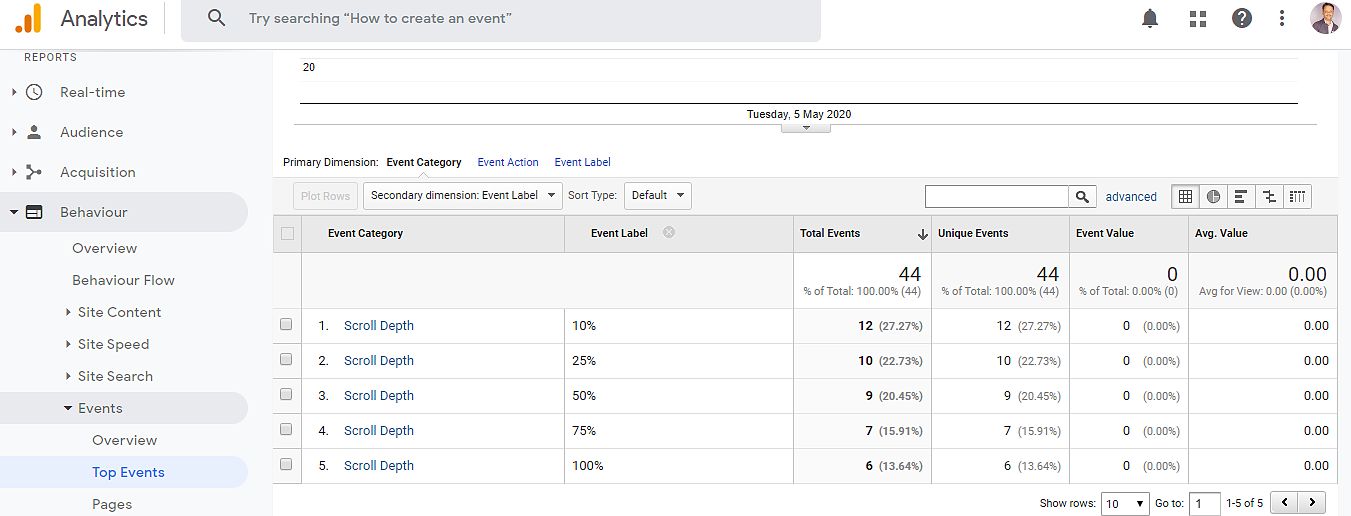
powerful scroll depth tracking

See the same data in the WordPress dashboard by MonsterInsights plugin. If you don't see the scroll data, set the date to the custom range. Now you can see the scroll tracking stats are bottom of the MonsterInsights publishers report after Interests section.
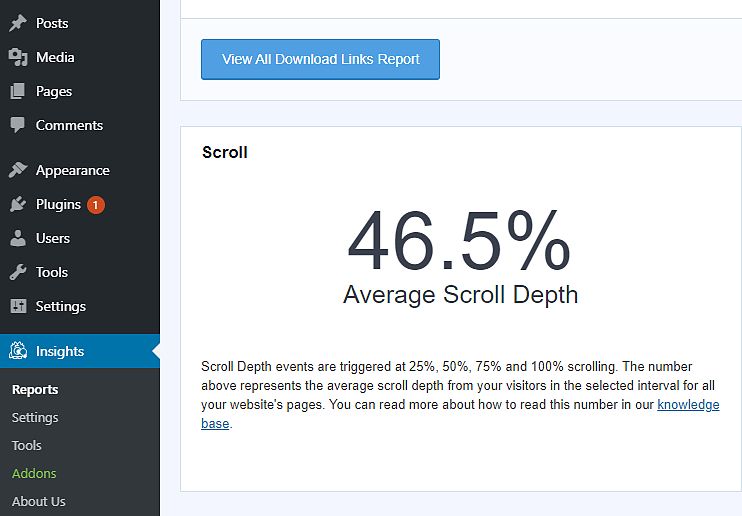
powerful scroll depth tracking

We hope this article helped you learn how to track scroll depth on your WordPress site using Google Analytics. If you feel great about this article and plugin, Please do share this with the needed ones.

Check out this plugin if planed to install and get benefits of this great plugin

Check here full features of this plugin

Latest posts

Introducing the Power of AI-Powered GetResponse Email Newsletter:Best Email Marketing Software: A Comprehensive Comparison for Empowering Your Marketing EffortsHow to Make Sure Emails Don't Go to Spam? SMTP Using Amazon SESSend WordPress contact email with WP Mail SMTP ProTop 5 Email Marketing Service Provider for Small Business Marketers

Popular posts

01How to easily set up a Google Analytics Stats Dashboard on WordPress 10 views02How To Easily Set Up Form Conversion Tracking in WordPress (Google Analytics) 0 views03Do You Know Which Keywords People Use To Find Your Website on Google? 0 views04MonsterInsights: Track your Website by Google Analytics inside WordPress Dashboard 0 views

Cricket scores

No cricket matches are available.

Weather

Weather28°
Feels like
30°
Humidity
54%
Wind
13 km/h

Latest e-paper

E-Paper

2026-10-12

Facebook

Instagram

New edition: | 12 Oct 2026 Read now: https://200.wpwebsmartz.com/view.php?id=812 Oct 2026Discover a dedicated solution for digital newspaper management with the WPWebsmartz E-Paper CMS. This content management system is specifically designed for managing and publishing digital e-paper editions. Watch this video to explore the core capabilities of the WPWebsmartz E-Paper CMS for digital publishing and newspaper management. Learn more here: https://license.wpwebsmartz.com/epaper_standalone.php #WPWebsmartz #EPaper #EPaperCMS #DigitalPublishing #CMS #NewspaperCMS https://www.youtube.com/watch?v=vb34qg709OQ07 Oct 2026Discover the WPWebsmartz E paper CMS. Explore the dedicated system designed for managing and publishing your e-paper content online. Click the link to learn more about the features and capabilities of WPWebsmartz E paper CMS today. #WPWebsmartz #Epaper #CMS #DigitalPublishing https://license.wpwebsmartz.com/epaper_standalone.php07 Oct 2026Discover the WPWebsmartz E paper CMS. Explore the dedicated system designed for managing and publishing your e-paper content online. Click the link to learn more about the features and capabilities of WPWebsmartz E paper CMS today. #WPWebsmartz #Epaper #CMS #DigitalPublishing https://license.wpwebsmartz.com/epaper_standalone.php07 Oct 2026Are you looking for fully managed dedicated server hosting? A managed dedicated server is always required to get the best performance for your platform. Check out our full Liquid Web Managed Dedicated Server Hosting review to learn more. #LiquidWeb #DedicatedServer #WebHosting #ManagedHosting #HostingReview https://wpwebsmartz.com/liquidweb-fully-managed-dedicated-server-hosting/03 Oct 2026

YouTube

Add the YouTube URL or content URLs in Settings → Articles.

Featured posts

Top Staff Augmentation Companies in India
How Does WooCommerce Product Gallery Support Self-Hosted and Vimeo Videos?The Role of Server-Level Caching in WordPress PerformanceWhy Your Website Needs a Security Plan, Even If You Don't Handle Payments?Why Colour Choices Matter in Web Design

Horoscope

♈ಮೇಷ♉ವೃಷಭ♊ಮಿಥುನ♋ಕರ್ಕಾಟಕ♌ಸಿಂಹ♍ಕನ್ಯಾ♎ತುಲಾ♏ವೃಶ್ಚಿಕ♐ಧನು♑ಮಕರ♒ಕುಂಭ♓ಮೀನು

E-Paper clips

The latest editions do not contain hotspot clips yet.

Web Stories

8 slidesData-Safe WordPress Hosting with Built-In Backup Support 

Reader Survey

Reader Survey

Register your interest and tell us how to contact you.

Your name
Your email address
Which session will you attend?

Related Stories

How To Easily Set Up File Downloads Tracking On Your WordPress Website
Monsterinsights

How To Easily Set Up File Downloads Tracking On Your WordPress Website

Do you offer an e-book or any downloadable resources from your website to visitors? If so, you can tracking downloads in google analytics right inside from your WordPress dashboard. Google Analytics does not offer a WordPress track file downloads system automatically. MonsterInsights lets you accurately track your file

How to Quickly Export WordPress Analytics with Google Analytics
Monsterinsights

How to Quickly Export WordPress Analytics with Google Analytics

This is an imagination If one of your clients wants to view their website performance, I mean, to export or share the google analytics data from google analytics or from your WordPress website dashboard. Yes, this article is about the export of google analytics data to your computer or about sharing the google analytic

How To Quickly Make Your Google Analytics CCPA Compliant
Monsterinsights

How To Quickly Make Your Google Analytics CCPA Compliant

Do you know Google Analytics is compliant with the California Consumer Privacy Act (CCPA)? Every website owner is best to use Google Analytics toll to see and understand their website stat. But one thing you should know, if you collect visitor's personal data, this will lead you to trouble, if your website does not mee

How to Add Easy, Powerful Google Analytics in WooCommerce
Monsterinsights

How to Add Easy, Powerful Google Analytics in WooCommerce

Do you have a WooCommerce store and want to track it by Google Analytics to see its performance? With add google analytics to WooCommerce, you can easily track detailed insights into your customer's shopping behavior, optimize your store, and get more sales. In this article, we’ll show you how to enable WooCommerce Goo

How to Create Easy Event Tracking with Google Analytics in WordPress
Monsterinsights

How to Create Easy Event Tracking with Google Analytics in WordPress

Normally you can track page views, referral source, time spent on-page, and much more by simply installing Google Analytics WordPress plugin. But you want to know more about what happens on your website rather than except mentioned above. I mean in-depth insights, for this you will need to use google analytics event tr

Latest NewsLive updates
  • Home
  • E-Paper
  • Web Stories
Logo

© 2025 E-Paper CMS. All rights reserved. | Developed by sunilubar.974@gmail.com

Epaper CMS by WPWebsmartz