E-Paper CMS
  • Home
  • E-Paper
  • Web Stories
Subscriber Login
Menu
HomeContact Form
Contact Form

5 Steps to Connect WordPress Website Leads And Salesforce

admin Aug 03, 2021 16 views
5 Steps to Connect WordPress Website Leads And Salesforce
Listen to this articleReady

Do you copy the form submission data to salesforce, now is the time comes to say goodby to this manual process? With the salesforce add-on provided by WPForms, you can switch to automate process send form entries from WordPress to Salesforce CRM by WordPress salesforce integration. So, WPForms easily do the WordPress salesforce integration with some clicks.

To do this WordPress Salesforce integration to your WordPress website you need a WPForms Elite license. By doing this on your WordPress website, you can create leads, contacts, accounts, and other Salesforce objects without doing anything on your salesforce account.

In addition, you can integrate the salesforce into any submission on the WordPress website, whether it's a new form or an existing one. When a user submits a form from your website, an object is generated automatically on your salesforce account.

Create Your WordPress Salesforce Form Now

Step 1. Setup of wordpress salesforce integration

To do WordPress salesforce integration, first, you need to install and activation the WPForms with an elite license.

If you are new to install a WordPress plugin read our article how to install WordPress plugin? or watch the video to learn.

After installation and activation of both WPForms and the salesforce add-on, to install addon go and click WPForms » Addons in the sidebar.
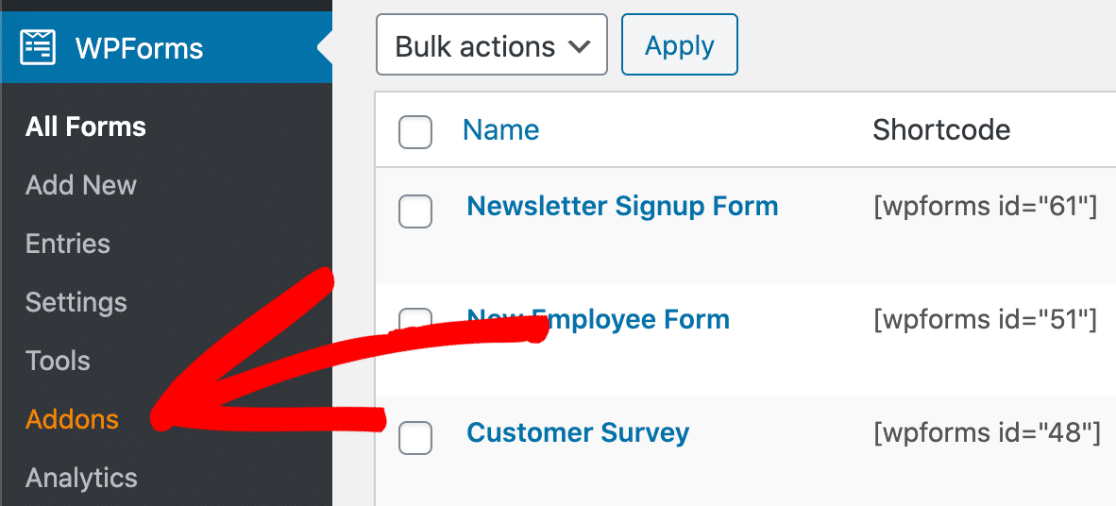
wordpress salesforce integration

And, the salesforce add-on is looking as in the image below.
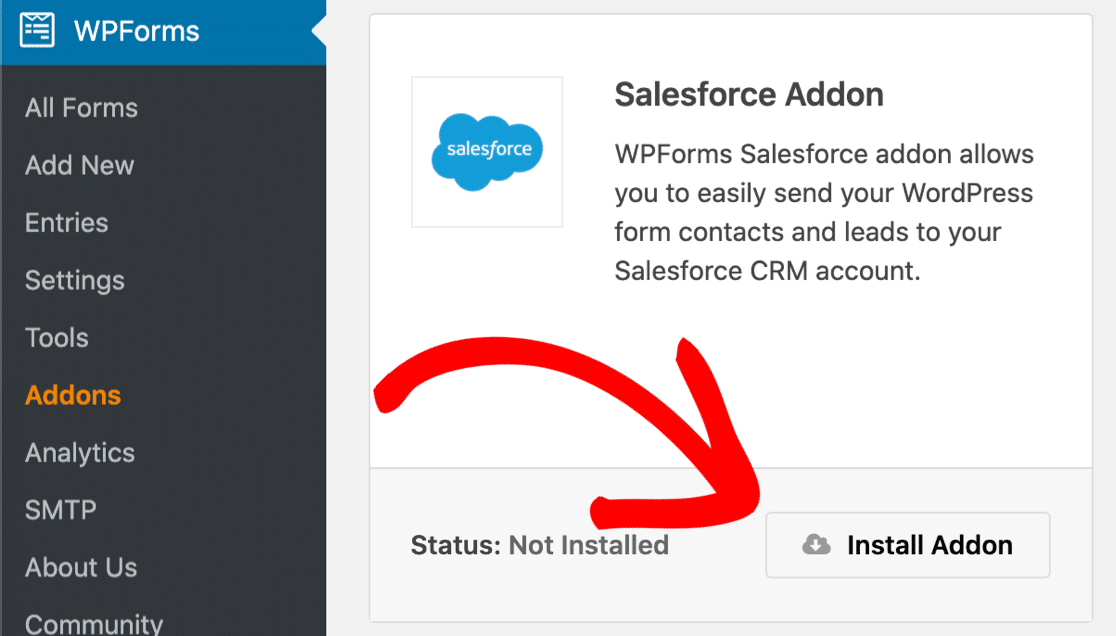
wordpress salesforce integration

Step 2. Check Salesforce Version to Wordpress Salesforce Integration

For salesforce integration, you must check and confirm the Salesforce version for API access. API access is available only for

  • Enterprise Edition
  • Developer Edition
  • Unlimited Edition
  • Performance Edition

In addition, to check your salesforce version, log in to your salesforce account and you can see your version as seen in the image below.
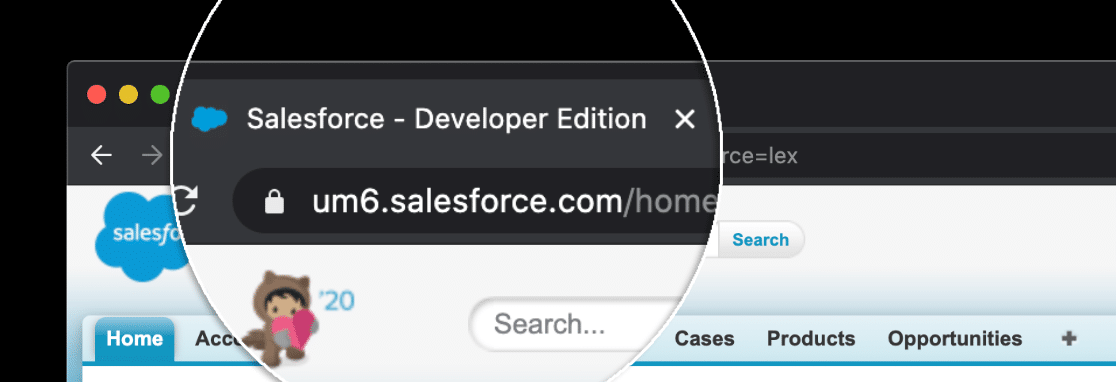
salesforce wordpress plugin

Please keep in mind, when you decide to create a salesforce account create as a developer

If you cant find your salesforce version head over to your profile which is on the top-right side of your computer. And click on the switch to Salesforce classic.

salesforce wordpress plugin

In addition, this will take you to another window, then go to Setup-Company Profile-Company Information, there will be you can see your salesforce version, which looks like as seen in the image below.

salesforce wordpress plugin

Now the basic step is complete here in salesforce.

Step 3. Wordpress Salesforce IntegrationStep 3.

To connect both salesforce and WordPress you need to create an app on salesforce. To create an app on salesforce, first, switch to Salesforce classic, then click on setup

salesforce wordpress plugin

There you see the list of services offered by salesforce on the left side. On the left side, you can see the Create under the Build, click on create then there you see the Apps button.

wordpress salesforce integration

Click on the Apps button, now you see the 3 sections as Apps | Subtab Apps | Connected Apps.

wordpress salesforce integration

Furthermore, in the connected apps click on the New button. Now you see the app settings page. In the Basic Information enter these things.

  • Enter your app name in the Connected App Name filed.
  • API Name will be added automaticlly.
  • Enter your working email address in Contact Email field.
wordpress salesforce integration

These three fields are required, in the rest of the fields, you can add or left needed information. Next in the API (Enable OAuth Settings) enable the Enable OAuth Settings checkbox. After ticking the checkbox it will ask you to add some information, for doing so, switch back to your WordPress dashboard in a separate tab. Keep alive the salesforce app settings screen.

Back in the WordPress dashboard click on WPForms » Settings-Integrations. Now there you see the salesforce icon, click on it, there you will see the Add New Account button. Click on the Add New Account button now there you will see the call back URL, copy that URL
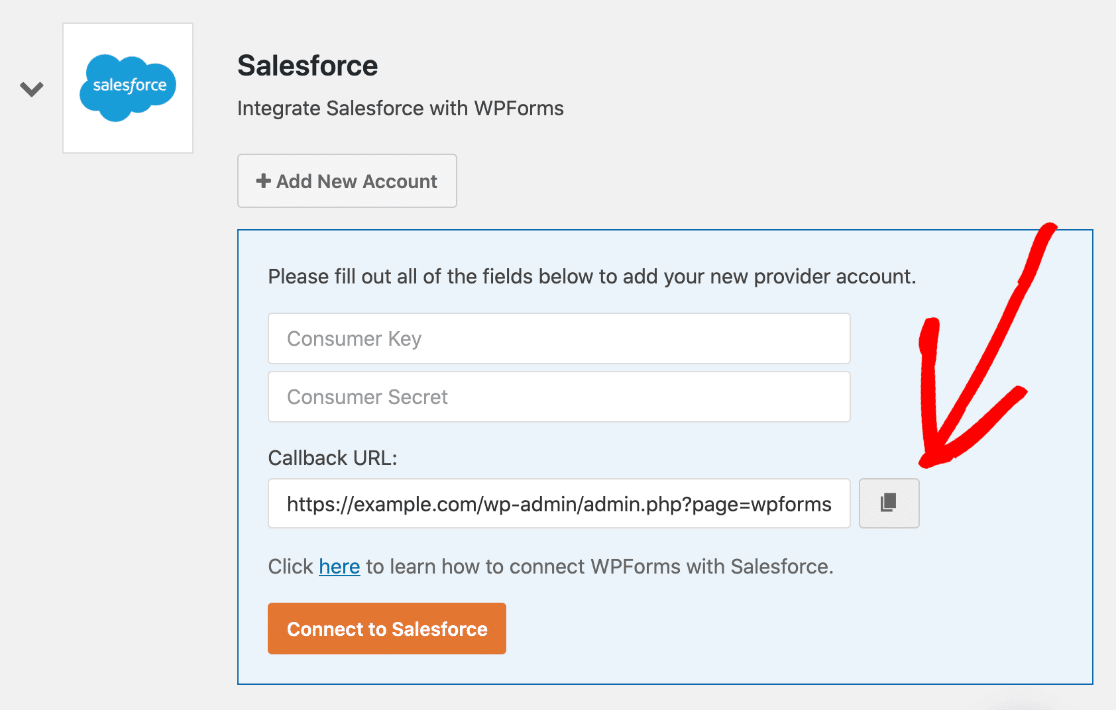
Copy the Salesforce callback URL from WPForms

Now come back to the salesforce app settings screen, and paste copied URL on the Callback URL tab.
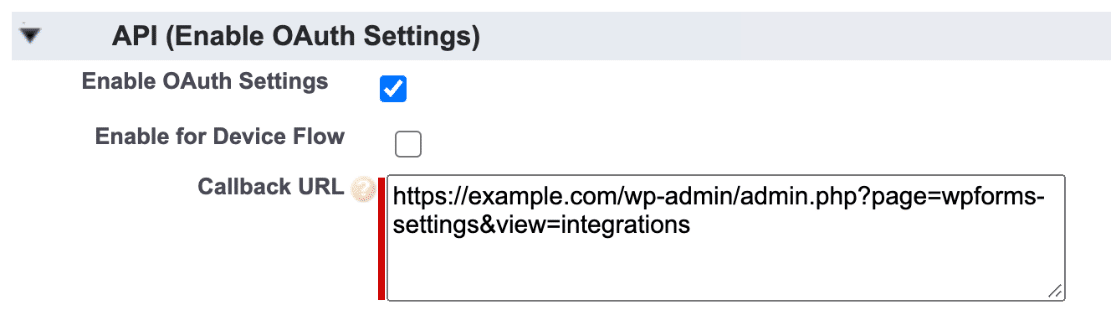
Add the WordPress callback URL to a Salesforce app

After pasting the callback URL, select these two OAuth Scopes such as

  • Access and manage your data (api)
  • Perform requests on your behalf at any time (refresh_token, offline_access)

And, add it to the Selected OAuth Scopes box by clicking the arrow button
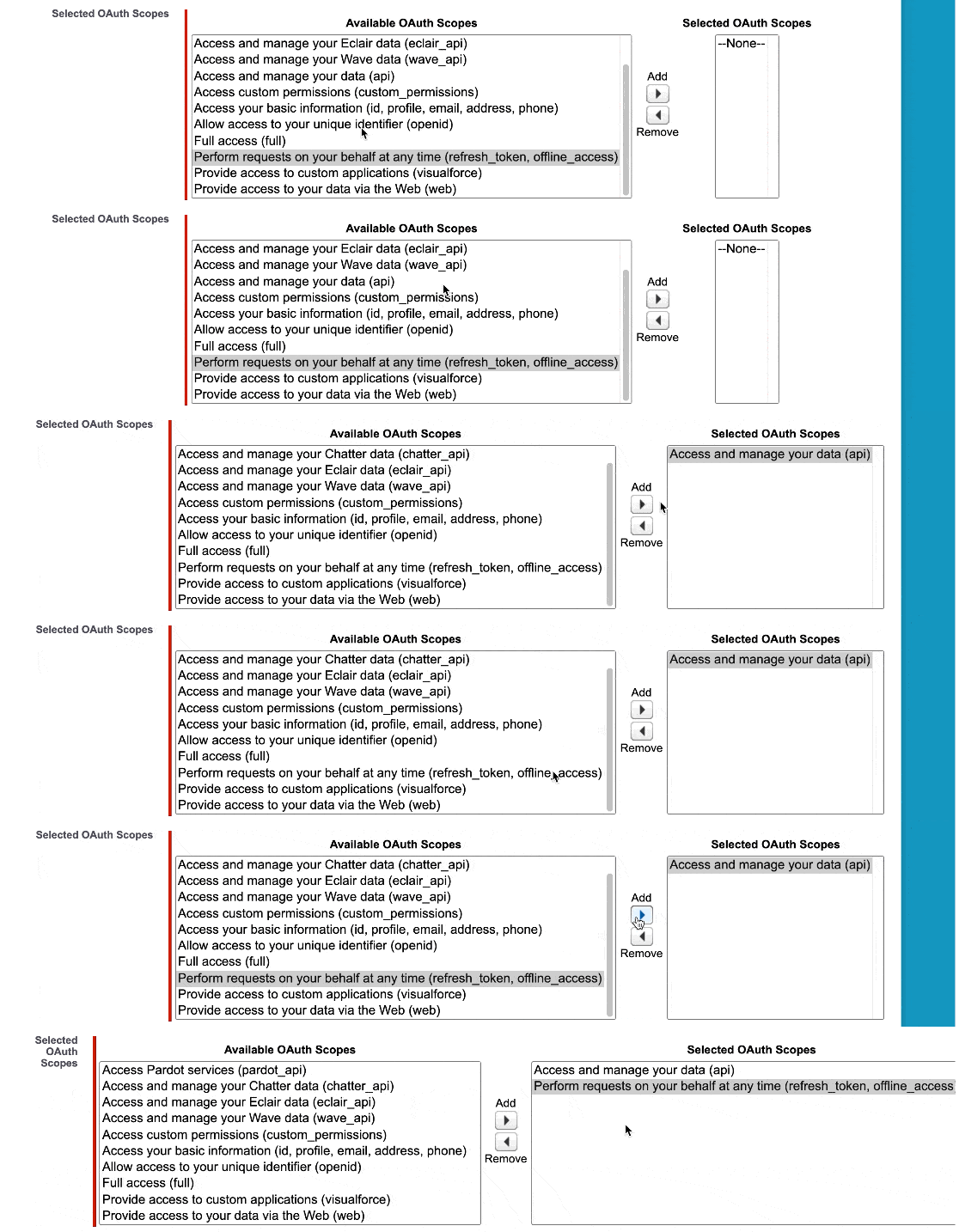
Select Salesforce OAuth permissions
Selected Salesforce OAuth scopes

Now all set to go live, don't forget to click the save button, which is on the top or bottom of the screen.

Step 4. Connect WordPress to Salesforce

Now all set to connect WordPress to Salesforce. After click saves, now in the next display you can see both Consumer Key and Consumer Secret under API (Enable OAuth Settings).

Salesforce connected app consumer keys

Copy and paste both keys to here in the WPForms tab on the WordPress dashboard.
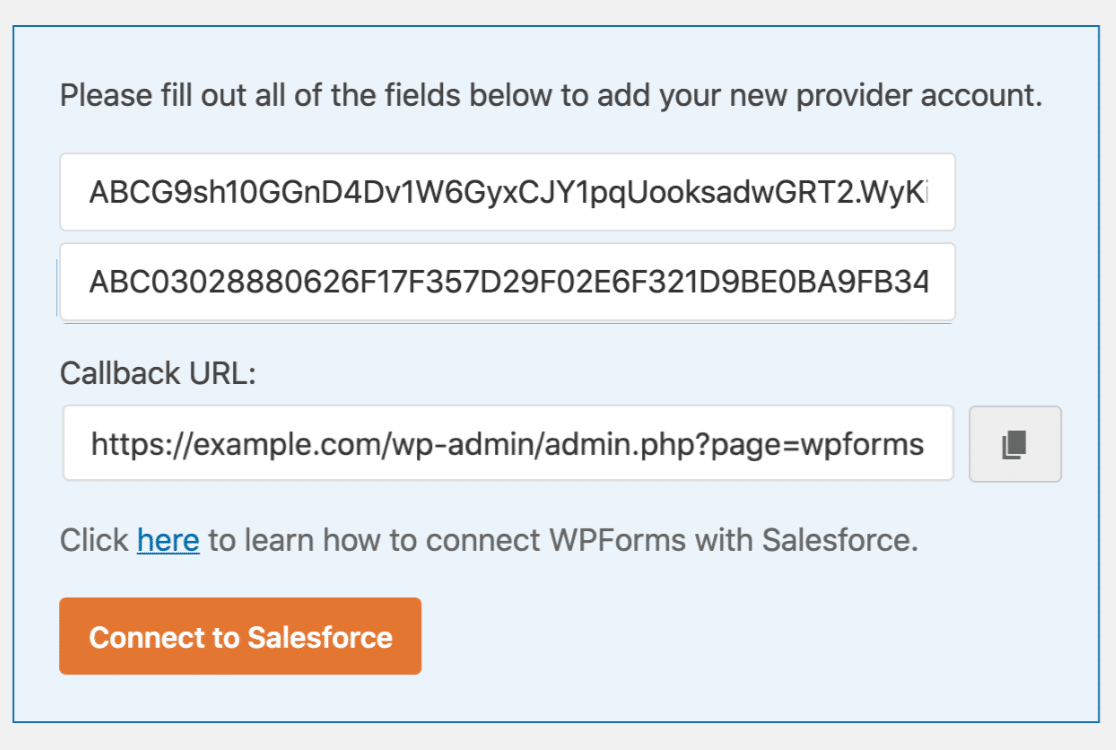
Enter Salesforce API keys in WPForms

After pasting both values click on connect to salesforce. Now it will request permission to access your Salesforce account. Click on allow button to access.
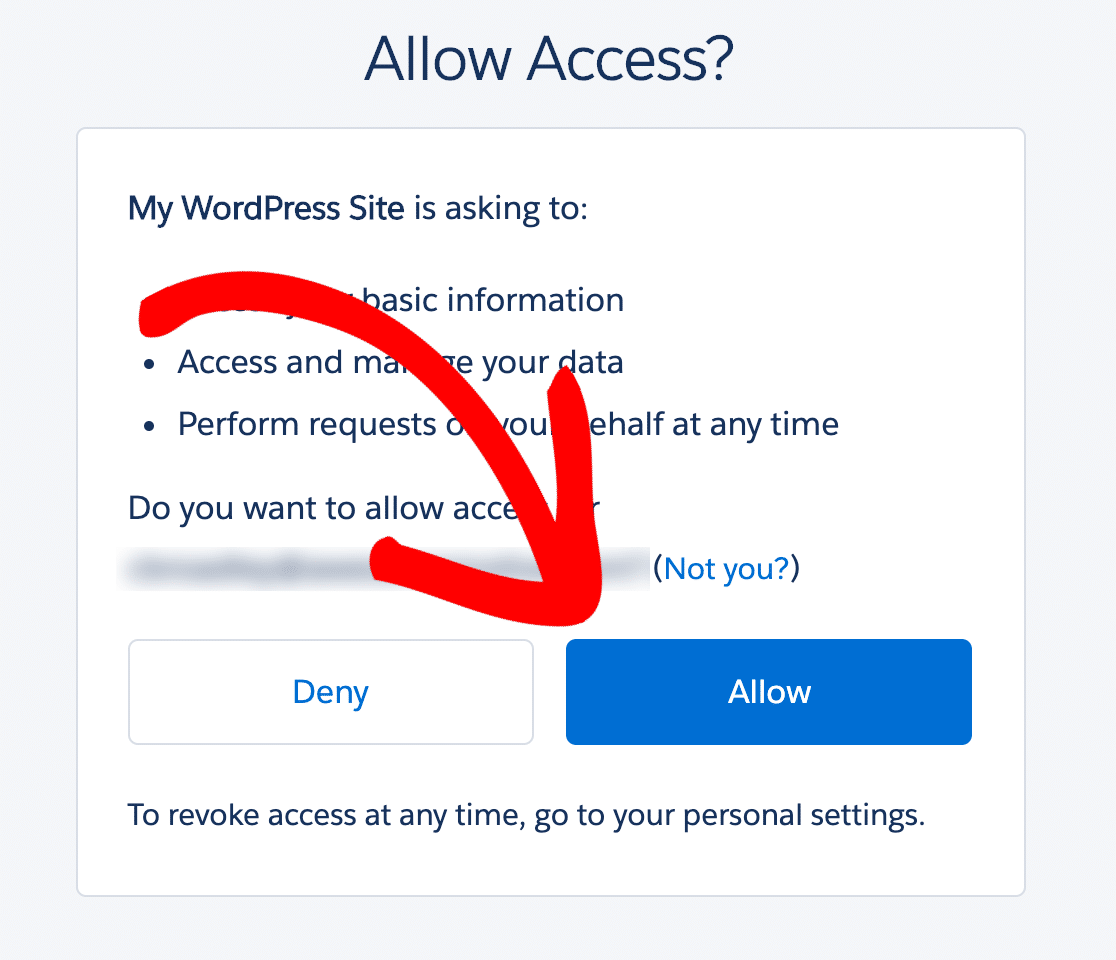
Authorize WPForms access to Salesforce

After access to the salesforce account, it will back to your WordPress dashboard and it will be showing you a success message.
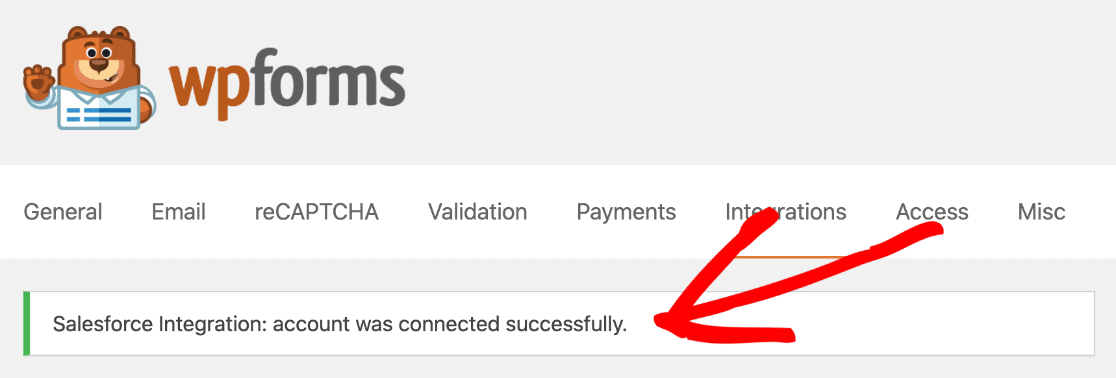
Salesforce connection success message

Now, you can see the connected account under the salesforce icon.
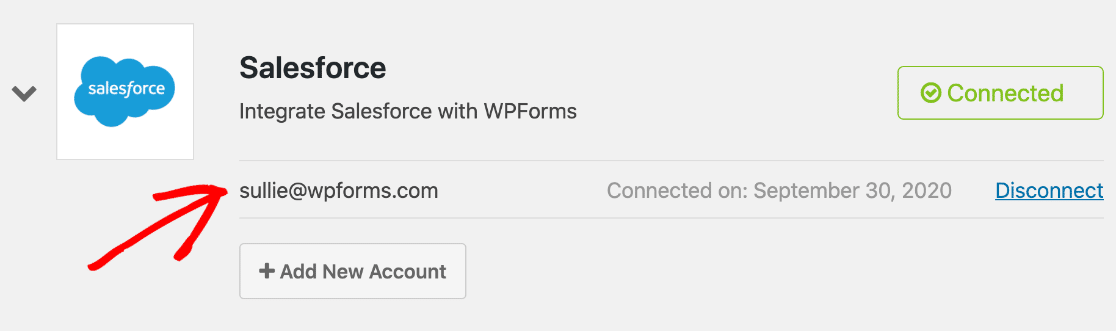
Connected Salesforce account in WPForms

Step 5. Create Salesforce Integrated WordPress Form

Now start to create a WordPress form with Salesforce integration. All submissions with this form are going to the salesforce account automatically.

If you are new to create a WordPress form by WPForms, for this read our article about creating a WordPress form to create a form.

WPForms comes with plenty of pre-made form templates, you can choose any from it, and you can customize it as you want.

After creating the form, head over to the marketing tab, where you see salesforce, click on it then click on Add New Connection.
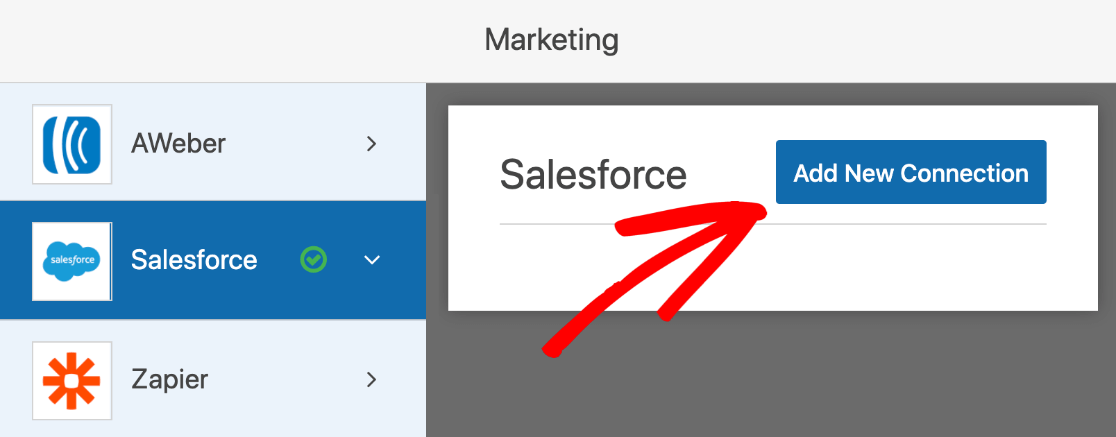
Add a Salesforce connection to a WPForms form

After click on Add New Connection, then enter a name to your connection, then click the ok button, now you can see the salesforce account you have already added. And in the next tab select Leads
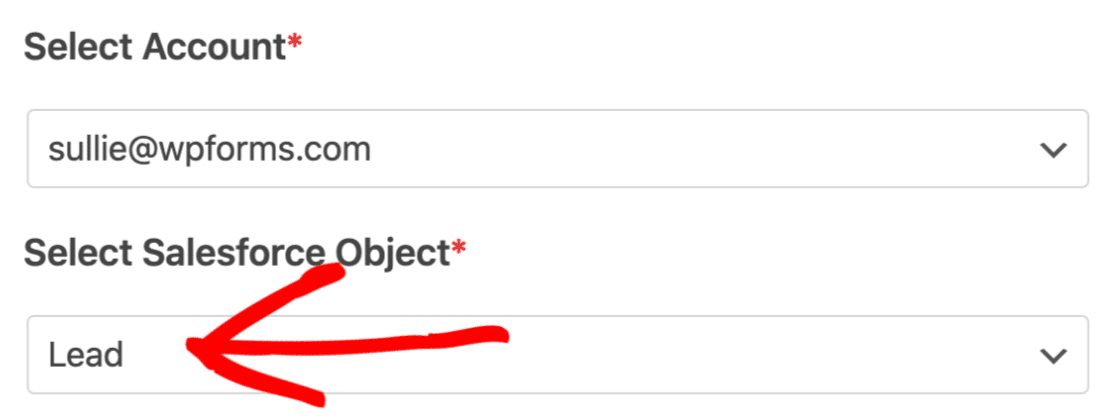
Select the Salesforce Lead object in WPForms

After selecting the leads, now you should do one more thing here. Map the fields of your WordPress form to the salesforce leads area. When you get a new submission from your salesforce integrated WordPress form, the submission data will be added automatically to the leads area on the salesforce account.
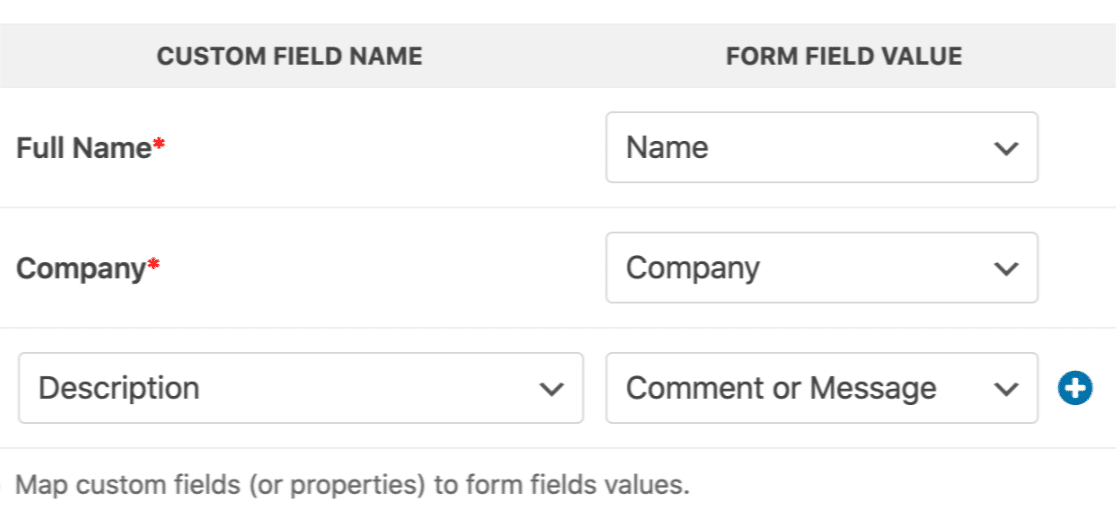
Map WPForms fields to Salesforce lead fields
Completed Salesforce integration settings in WPForms

That's it. you have successfully done the WordPress salesforce integration. Now you can get all your salesforce integrated form submission to your salesforce account automatically.

Create Your WordPress Salesforce Form Now

If you would like this article, please share it with your social channels it will help to needed ones.

Read our WordPress related article to grow your online business

  • 5-things-about-flywheel-growth-suite
  • WordPress-seo-made-simple-semrush-free-trial
  • Handcrafted-wordpress-contact-form-plugins-for-bloggers

Latest posts

Introducing the Power of AI-Powered GetResponse Email Newsletter:Best Email Marketing Software: A Comprehensive Comparison for Empowering Your Marketing EffortsHow to Make Sure Emails Don't Go to Spam? SMTP Using Amazon SESSend WordPress contact email with WP Mail SMTP ProTop 5 Email Marketing Service Provider for Small Business Marketers

Popular posts

01How to easily set up a Google Analytics Stats Dashboard on WordPress 10 views02How To Easily Set Up Form Conversion Tracking in WordPress (Google Analytics) 0 views03Do You Know Which Keywords People Use To Find Your Website on Google? 0 views04MonsterInsights: Track your Website by Google Analytics inside WordPress Dashboard 0 views

Cricket scores

No cricket matches are available.

Weather

Weather26°
Feels like
28°
Humidity
69%
Wind
11 km/h

Latest e-paper

E-Paper

2026-10-12

Facebook

Instagram

New edition: | 12 Oct 2026 Read now: https://200.wpwebsmartz.com/view.php?id=812 Oct 2026Discover a dedicated solution for digital newspaper management with the WPWebsmartz E-Paper CMS. This content management system is specifically designed for managing and publishing digital e-paper editions. Watch this video to explore the core capabilities of the WPWebsmartz E-Paper CMS for digital publishing and newspaper management. Learn more here: https://license.wpwebsmartz.com/epaper_standalone.php #WPWebsmartz #EPaper #EPaperCMS #DigitalPublishing #CMS #NewspaperCMS https://www.youtube.com/watch?v=vb34qg709OQ07 Oct 2026Discover the WPWebsmartz E paper CMS. Explore the dedicated system designed for managing and publishing your e-paper content online. Click the link to learn more about the features and capabilities of WPWebsmartz E paper CMS today. #WPWebsmartz #Epaper #CMS #DigitalPublishing https://license.wpwebsmartz.com/epaper_standalone.php07 Oct 2026Discover the WPWebsmartz E paper CMS. Explore the dedicated system designed for managing and publishing your e-paper content online. Click the link to learn more about the features and capabilities of WPWebsmartz E paper CMS today. #WPWebsmartz #Epaper #CMS #DigitalPublishing https://license.wpwebsmartz.com/epaper_standalone.php07 Oct 2026Are you looking for fully managed dedicated server hosting? A managed dedicated server is always required to get the best performance for your platform. Check out our full Liquid Web Managed Dedicated Server Hosting review to learn more. #LiquidWeb #DedicatedServer #WebHosting #ManagedHosting #HostingReview https://wpwebsmartz.com/liquidweb-fully-managed-dedicated-server-hosting/03 Oct 2026

YouTube

Add the YouTube URL or content URLs in Settings → Articles.

Featured posts

Top Staff Augmentation Companies in India
How Does WooCommerce Product Gallery Support Self-Hosted and Vimeo Videos?The Role of Server-Level Caching in WordPress PerformanceWhy Your Website Needs a Security Plan, Even If You Don't Handle Payments?Why Colour Choices Matter in Web Design

Horoscope

♈ಮೇಷ♉ವೃಷಭ♊ಮಿಥುನ♋ಕರ್ಕಾಟಕ♌ಸಿಂಹ♍ಕನ್ಯಾ♎ತುಲಾ♏ವೃಶ್ಚಿಕ♐ಧನು♑ಮಕರ♒ಕುಂಭ♓ಮೀನು

E-Paper clips

The latest editions do not contain hotspot clips yet.

Web Stories

8 slidesData-Safe WordPress Hosting with Built-In Backup Support 

Reader Survey

Reader Survey

Register your interest and tell us how to contact you.

Your name
Your email address
Which session will you attend?

Related Stories

From Boring to Engaging: How Conversational Forms Are Transforming Online Surveys and Feedback
Contact Form

From Boring to Engaging: How Conversational Forms Are Transforming Online Surveys and Feedback

Are you tired of lengthy, monotonous online surveys that make you want to give up before you even start? Well, you're not alone. Fortunately, there's a game-changing solution that is revolutionizing the way we gather feedback and conduct surveys online. Say goodbye to boring forms and hello to conversational forms! The

Create an Order Form in WordPress in 3 Simple Steps
Contact Form

Create an Order Form in WordPress in 3 Simple Steps

Do you think to sell any product from your website, or would like to get an order from your website? If yes, but don't know how to do the process and have no idea about the WordPress order form. in this article, we are taking this tutorial in brief with the images. This is very easy to implement on your website. Create

Step by Step Guide How to Create Online Donation Forms in WordPress
Contact Form

Step by Step Guide How to Create Online Donation Forms in WordPress

Do you plan to collect donations from your WordPress website? You can easily collect donations from your WordPress website with WPForms. Here we have done make a tutorial about how to create a donation form on WordPress. If you are a part of a non-profit organization, I might think this tutorial for you. WPForms giving

How to make a quiz in WordPress
Contact Form

How to make a quiz in WordPress

Making a quiz on your WordPress website is now kids' play. Yes, Formidable forms WordPress quiz maker add on made this work easy. Quizzes are a fun way to increase user engagement on your site. You can use them for educational purposes or use them to create viral content like BuzzFeed and others to get more social shar

Quick and Easy Form Landing Pages in WordPress
Contact Form

Quick and Easy Form Landing Pages in WordPress

Do you have ever heard about the landing page, WordPress landing page, or WordPress form landing page? Don't confuse about your home page it's not a landing page, it's a standalone webpage. But particularly if you planned to get information about your web visitors. You can use the form landing pages with surveys, users

How to send autoresponder emails in WordPress
Contact Form

How to send autoresponder emails in WordPress

Have you ever think to send a confirmation email (autoresponder) from your WordPress website? Are you excited, this article about how to send confirmation emails in WordPress is for you? For these set-ups, it takes only a few minutes and very few clicks. What is send confirmation emails in WordPress? in Short, this is

Latest NewsLive updates
  • Home
  • E-Paper
  • Web Stories
Logo

© 2025 E-Paper CMS. All rights reserved. | Developed by sunilubar.974@gmail.com

Epaper CMS by WPWebsmartz