How to build a WordPress website with the Responsive theme
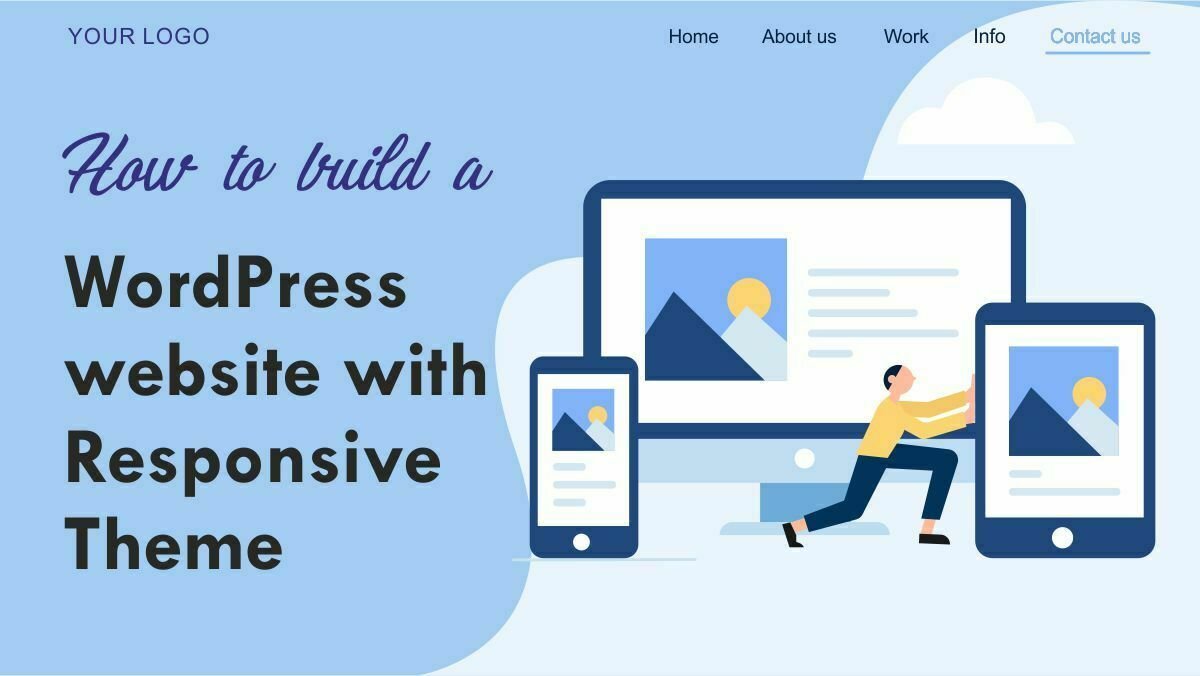
Have you ever heard about the WordPress blog? if yes, I add this too, this is How to build a WordPress website with a Responsive theme?
With the WordPress website with the Responsive theme, you can make an easily profitable business by Wordpress today.
When I began my first blog, I had no clue how to get activity so it took me a couple of years to get any force. There was no proper idea of how to get the start and where from? What is the main thing? What are Theme, Plugins, Difference between post and page?
In this article, I explain briefly how to start a WordPress blog. and also how to build a WordPress website with a Responsive theme. Need Some basic requirements for the start of a WordPress blog (Ex: Which theme, plugin, best for the proper functioning of your blog)
Step 1: Choose a domain name of your blog
The primary thing you will do is to pick a domain name this is the address of your website. I mean blog. We recommend Hostgator is best for chose domain name and hosting. Hostgator clients since they are CHEAP, dependable, have shockingly great client support, and they make the specialized piece of working with WordPress extremely simple.
[wpcd_coupon id=8732]Step 2: Choose a Hosting Plane
To build a good Responsive WordPress website is have must buy a hosting plan to host your website on the internet. Hosting means doing upload all your files to the internet. Hostgator have the best plans for hosting. Their plan Starts at Rs.99/mo. This plan best for beginners.
Step 3: Install WordPress in Cpanel

View WordPress installation in video
Click WordPress Icon there in Cpanel, now you are going to Script installation and Setup page.
First choose protocol anyone you want HTTP:// or http://www, with www or without www. Chose domain to give a name to Directory (Please note: don’t put anything in the directory because one more folder created under your domain name and it will be slowed down of your website)
Enter a site name in the site settings tab and put site description. Enable or disable Multisite (WPMU) this is the restriction for multiple login attempts
Give an admin username and password, Password should be strong (ie: @7Xxxxx) one special character a number and an uppercase (its show you week and strong meter in the bottom with red for week green for strong) put admin email after that.
Click Install button below which is in blue (See Image Below)

Step 4: WordPress Installation Sign up Details
The page was redirected to the image below ( Congratulations, the software installed successfully ) click Administration URL and login admin dashboard of your website.

Step 5: Install Plugins inside WordPress blog
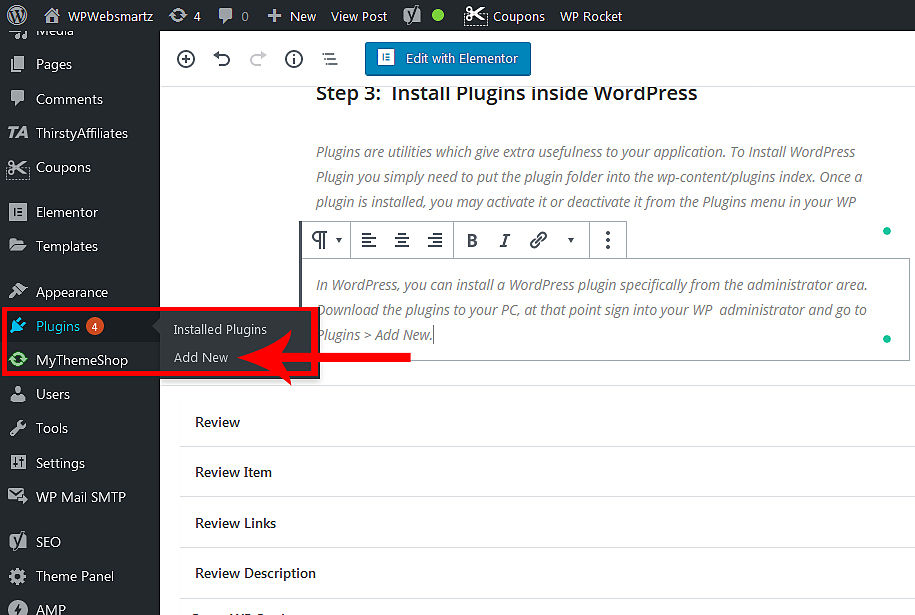
Plugins are utilities that give extra usefulness to your application. To Install WordPress Plugin you simply need to put the plugin folder into the wp-content/plugins index. Once a plugin is installed, you may activate it or deactivate it from the Plugins menu in your WP dashboard.
In WordPress, you can install a WordPress plugin specifically from the administrator area. Download the plugins to your PC, at that point sign into your WP administrator and go to Plugins > Add New.
Step 6: Installing and activating to build a WordPress website with Responsive theme

Install theme by search
View video for theme installation
To get attraction from your blog visitors, you must install a good Responsive Theme. to build a brand new WordPress blog.
To do so, log into your WordPress account. You can find the admin area by typing <domainname>.com/wp-admin in the address bar of a browser.
Log in using your admin username and password, and you will see the WordPress dashboard like this:
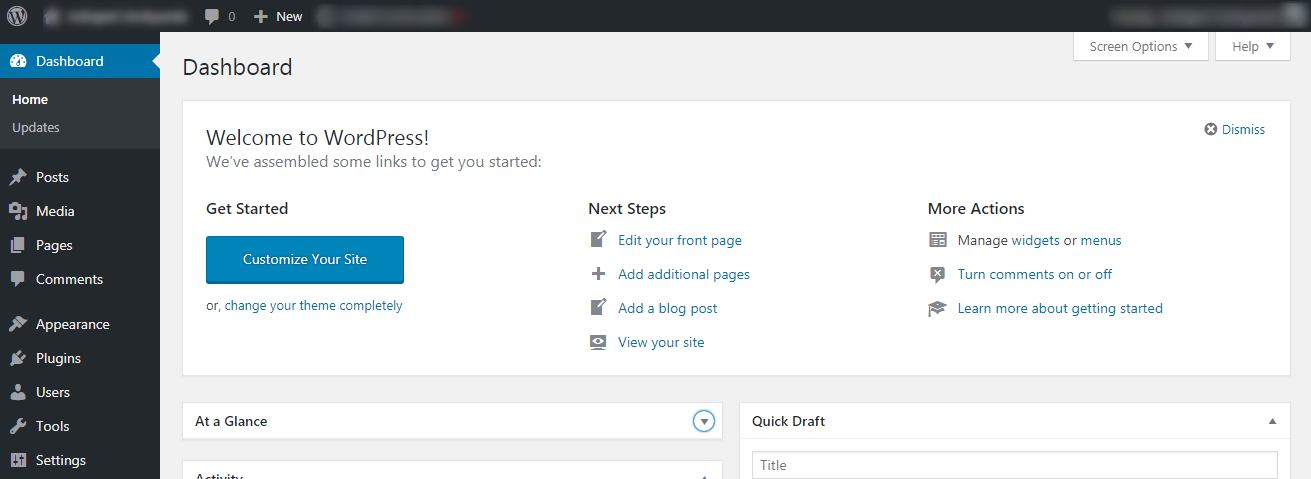
WordPress comes with a default theme called Twenty Nineteen, but you can find a lot more themes in its theme repository.
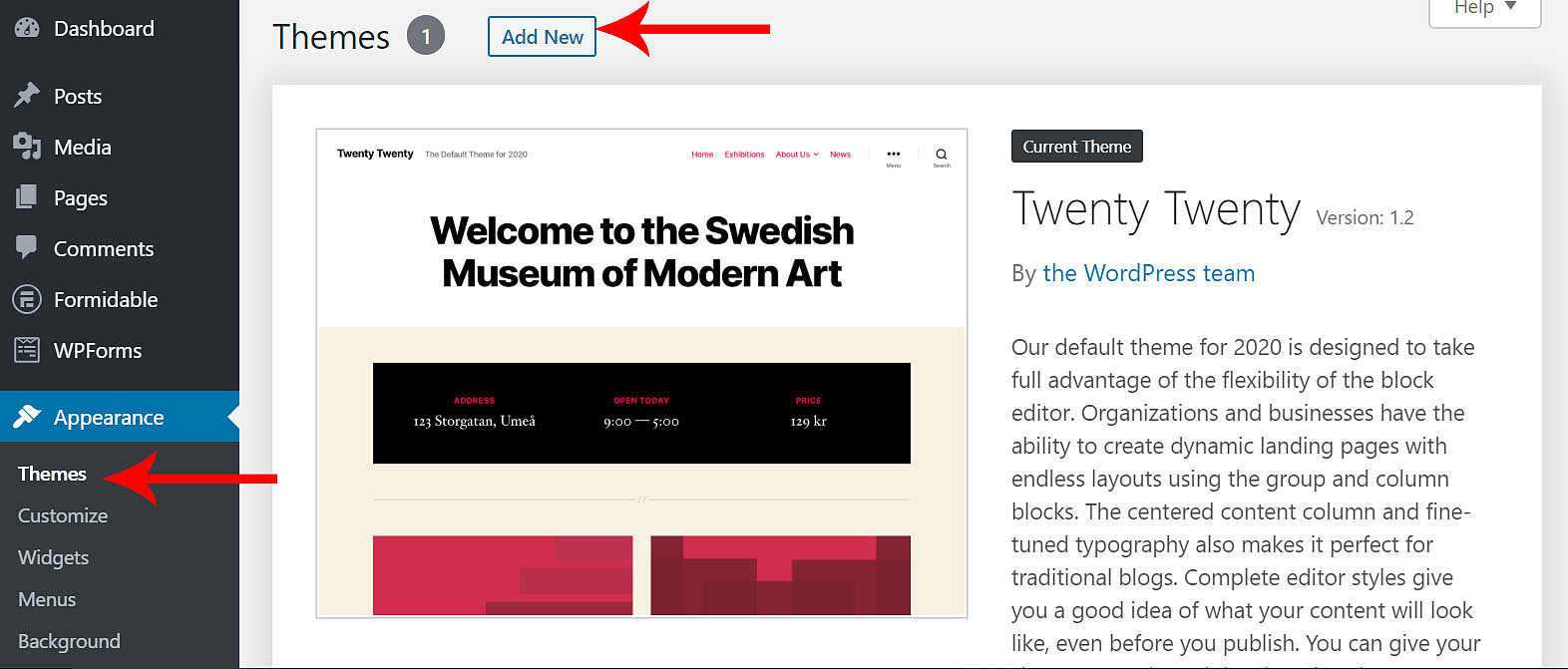
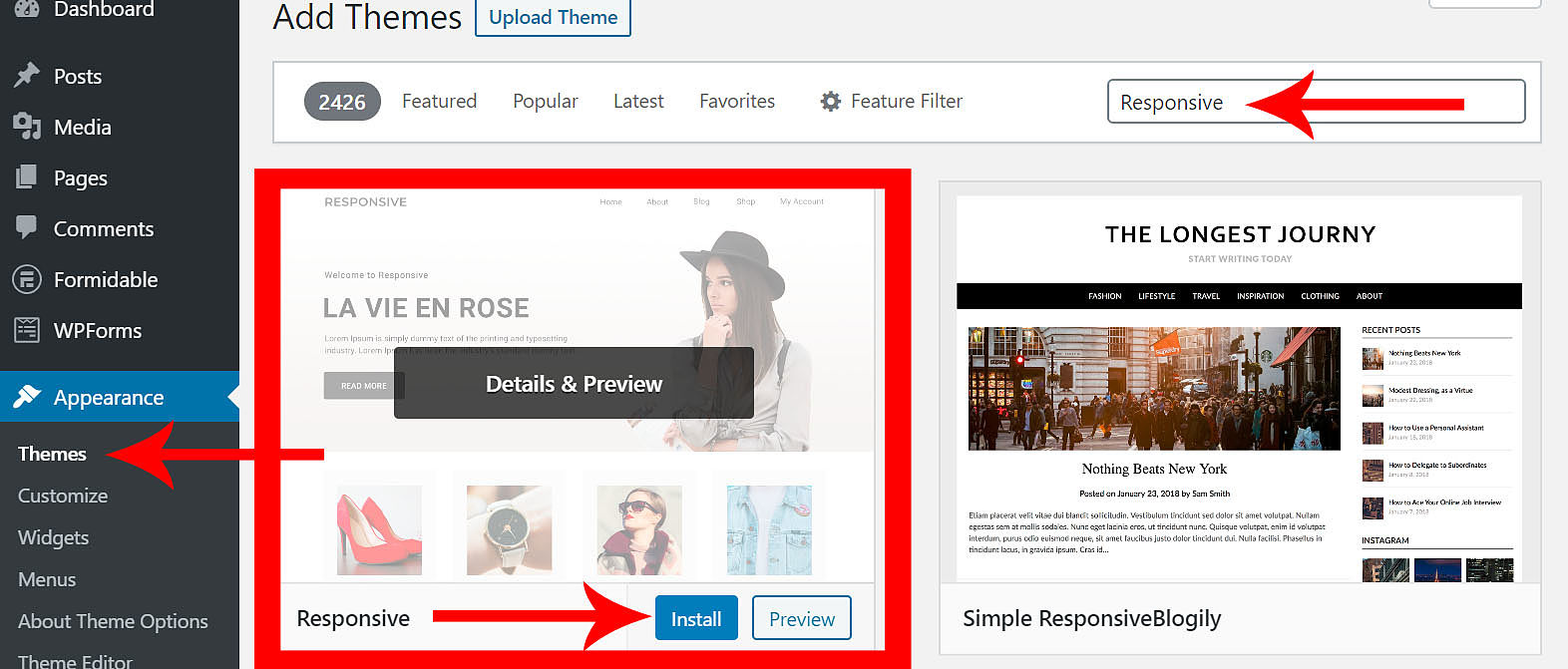
To add a new theme, go to Appearance —> Themes and click on Add New. In the Search box, you can type in keywords such as Responsive, business or e-commerce
In this article, I am going with cyber chimps Responsive theme to build the WordPress website with a Responsive theme. this theme available in both free and pro versions. This theme is the best to suit an online news portal or a personal blog. A responsive theme means its automatically suited for big to small devices such as Computer, Mobile, or a Tablet PC.
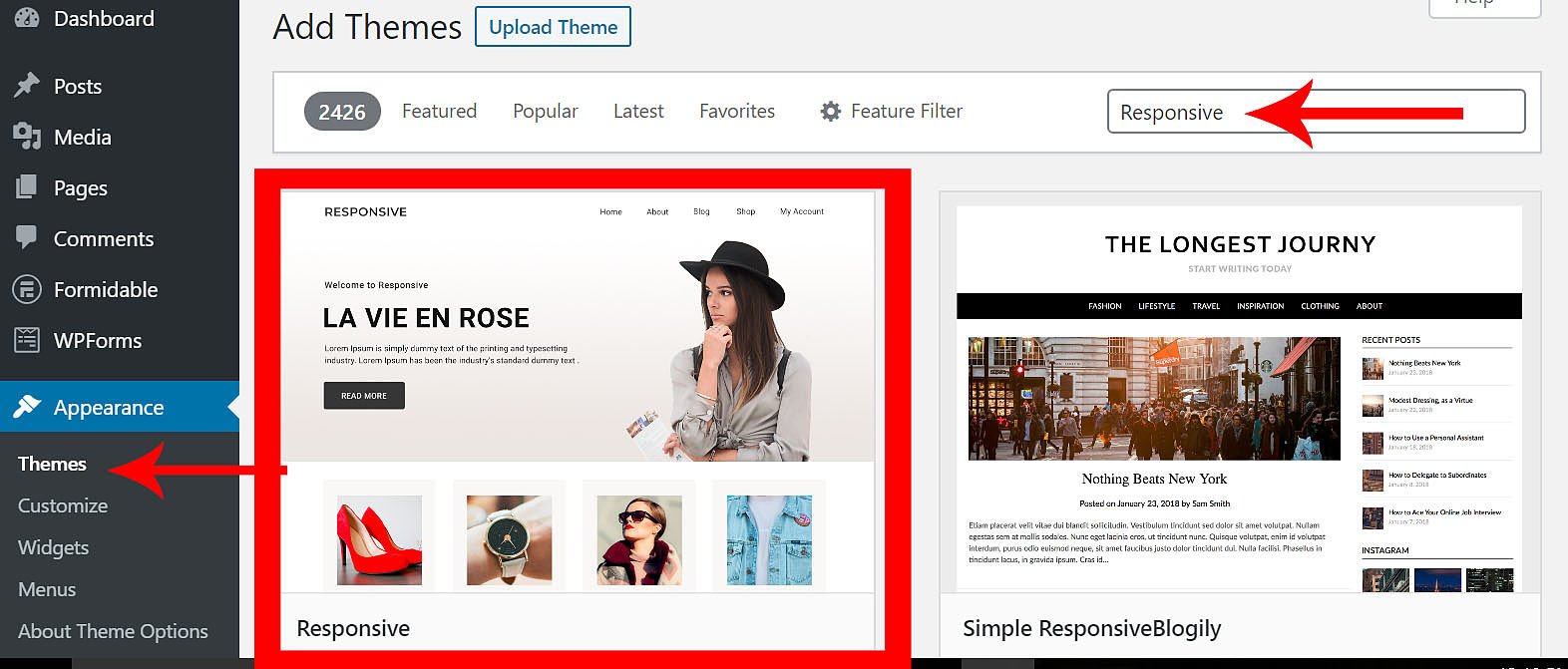
After searching the theme. While you scrolling mouse over the theme preview now you can see the install button automatically at the bottom of the theme preview. Click the install button.
After installation, the install button turns into the activate button. Click the activation button.
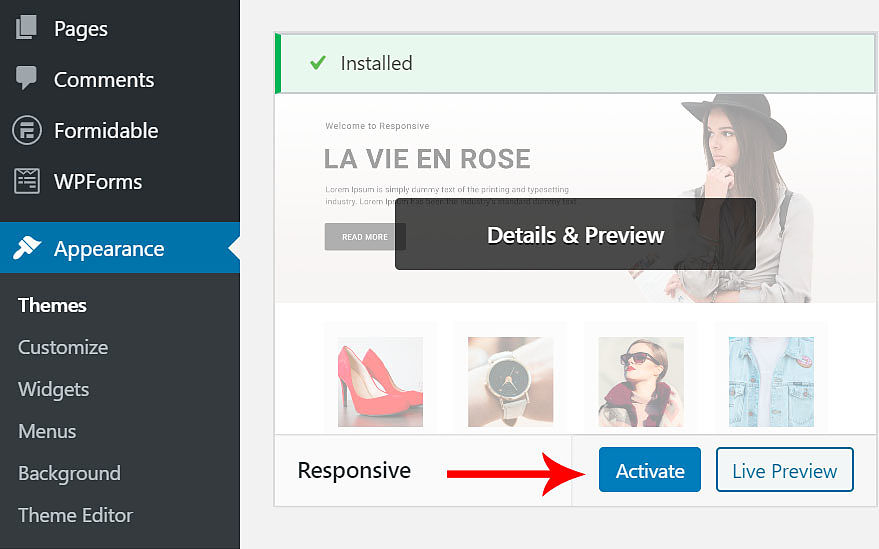
Now your website installed with a brand new responsive theme. Now your website looks differently and attractively.
Install theme by file upload
1. Download the latest Responsive theme from the WordPress repository
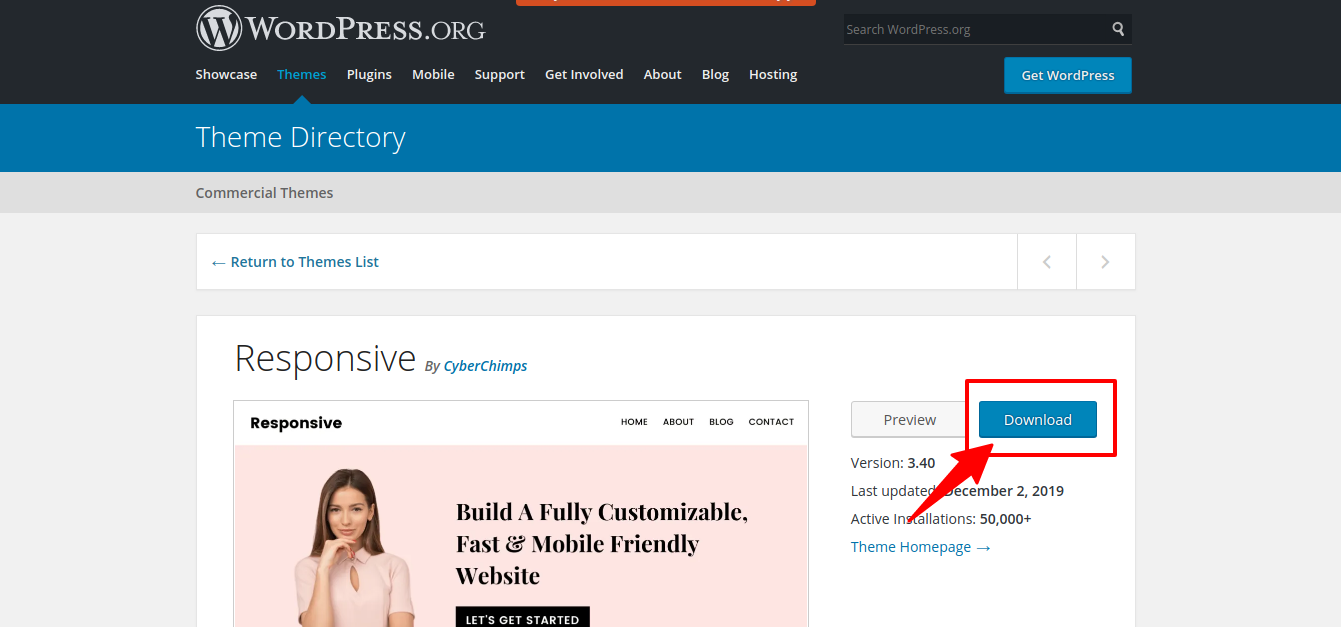
2. Login to your WordPress Dashboard
3. From your WordPress dashboard, go to Appearance > Themes > Add New
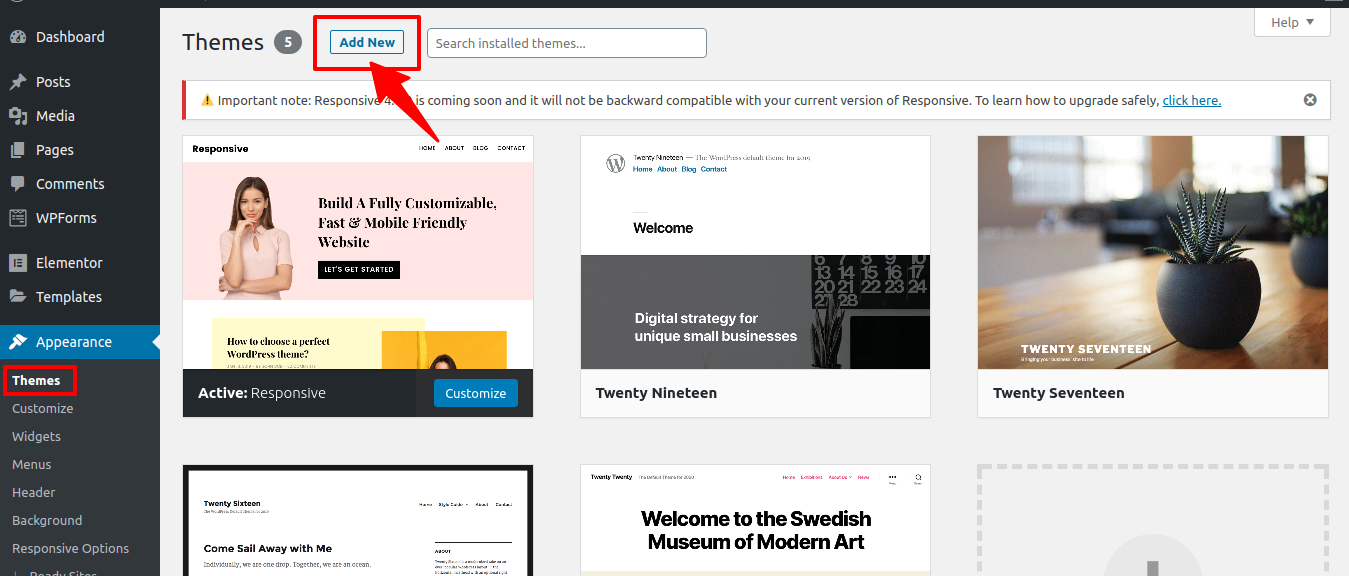
4. Upload the downloaded theme zip file
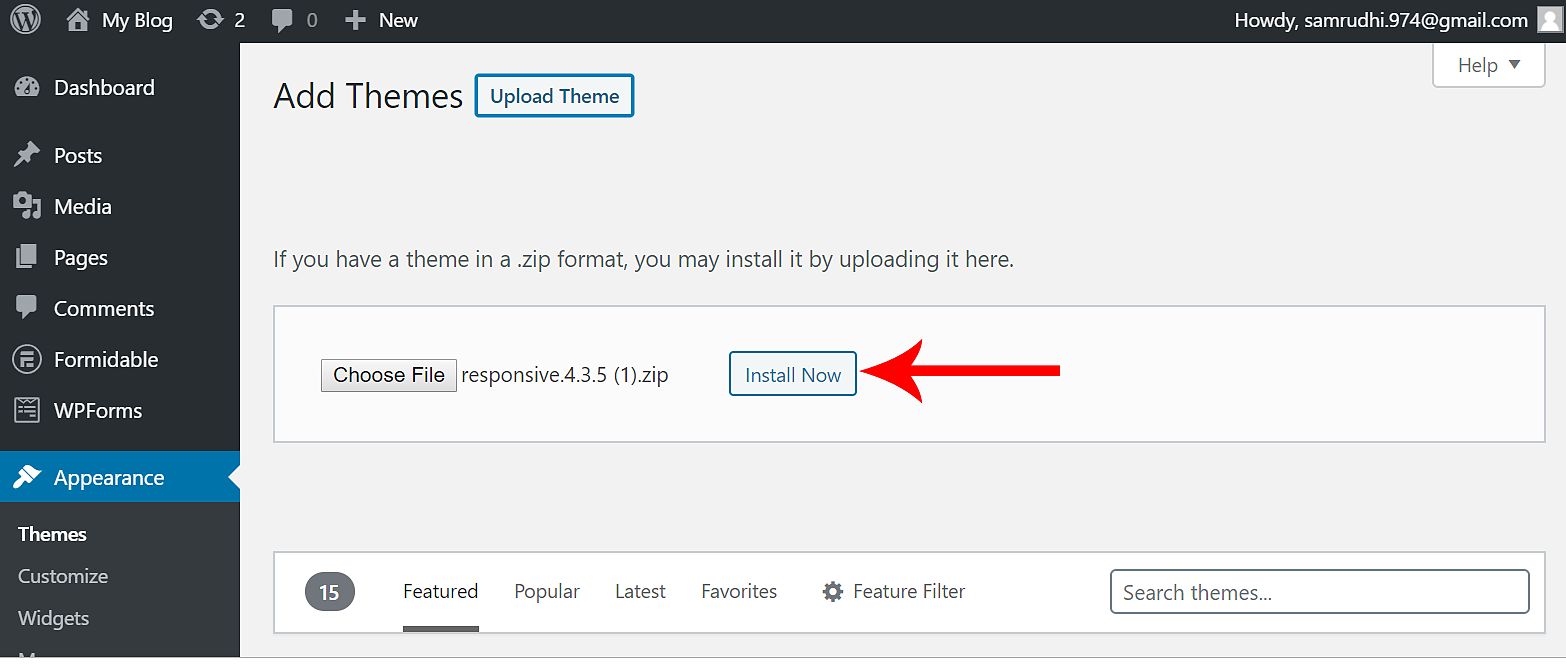
5. Click install button the Responsive theme.
6. After installation click activate button.
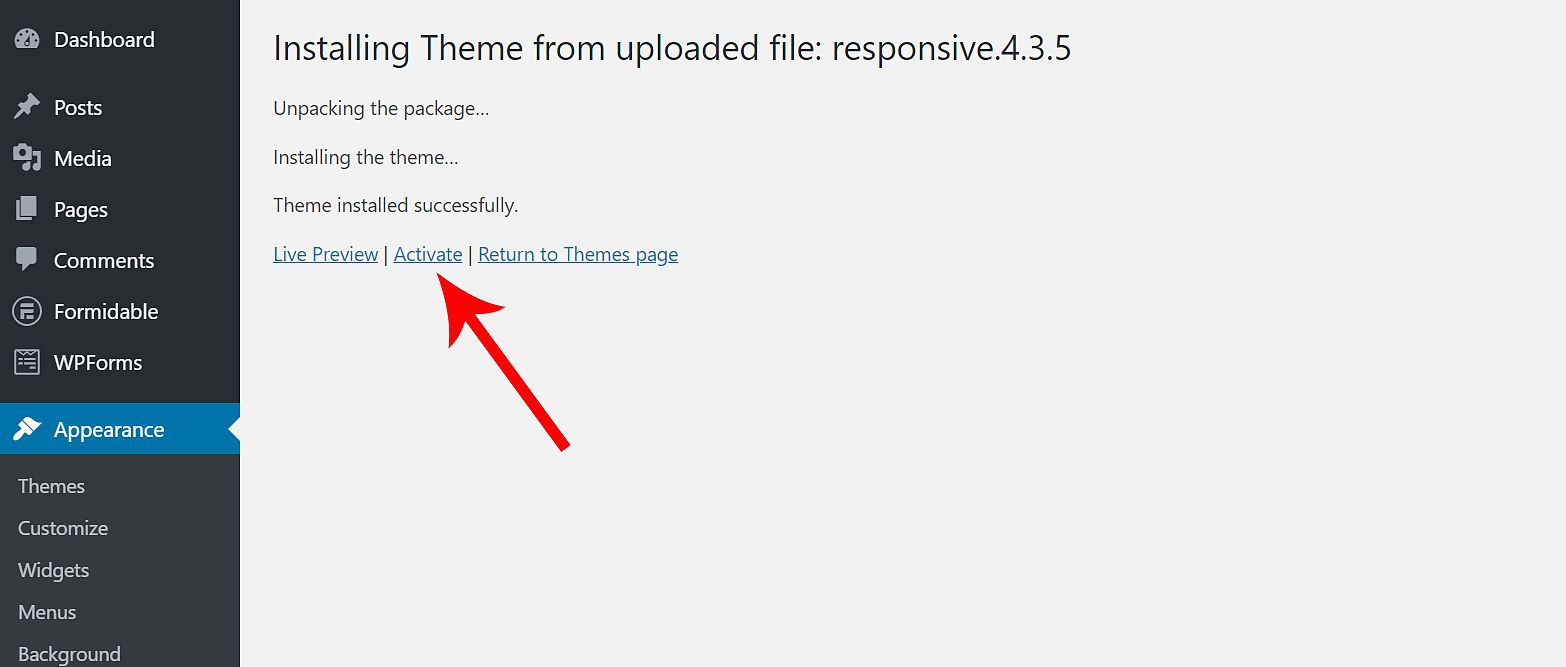
After activation of the responsive theme, now you must take one more important step.
Step 7: Install the Responsive Ready Sites Importer plugin
Move to "Responsive Options" which is under Appearance
Here you can view all options related to the responsive theme. But particularly you can see the "Import a website template(FREE)" (Plugin name: Responsive Ready Sites Importer this plugin available on wordpress.org for free) option. Click the "Install and Activate" button on that frame.
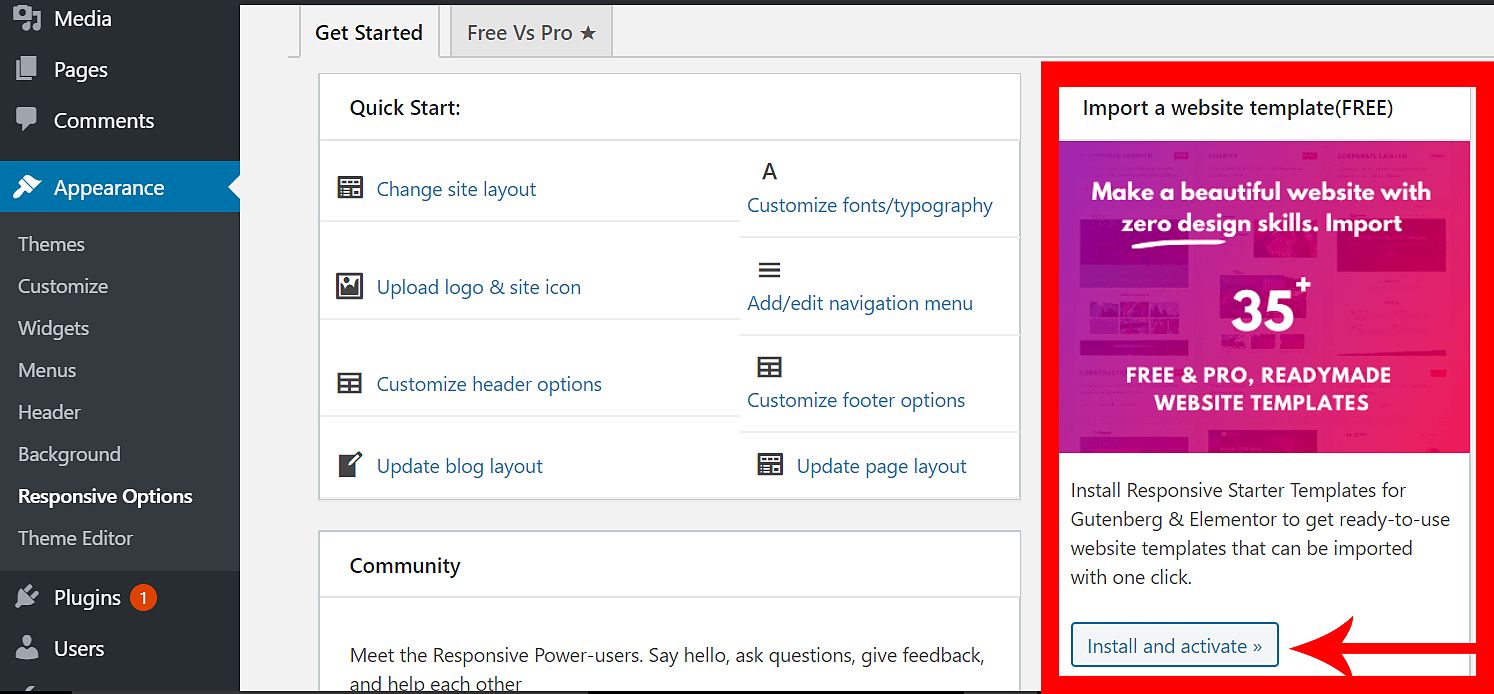
After installation of Responsive Ready Sites Importer, Now you can see the one more button enabled in the menu bar of WordPress dashboard which is Responsive.
Here you can import any ready-made responsive website templates from cyberchimps.com inside your WordPress dashboard. All this process is automated.
Under the "Responsive" of the sidebar menu, you can see the "Site Templates", click on it. Now you can see lots of free made templates. Select any one of them.
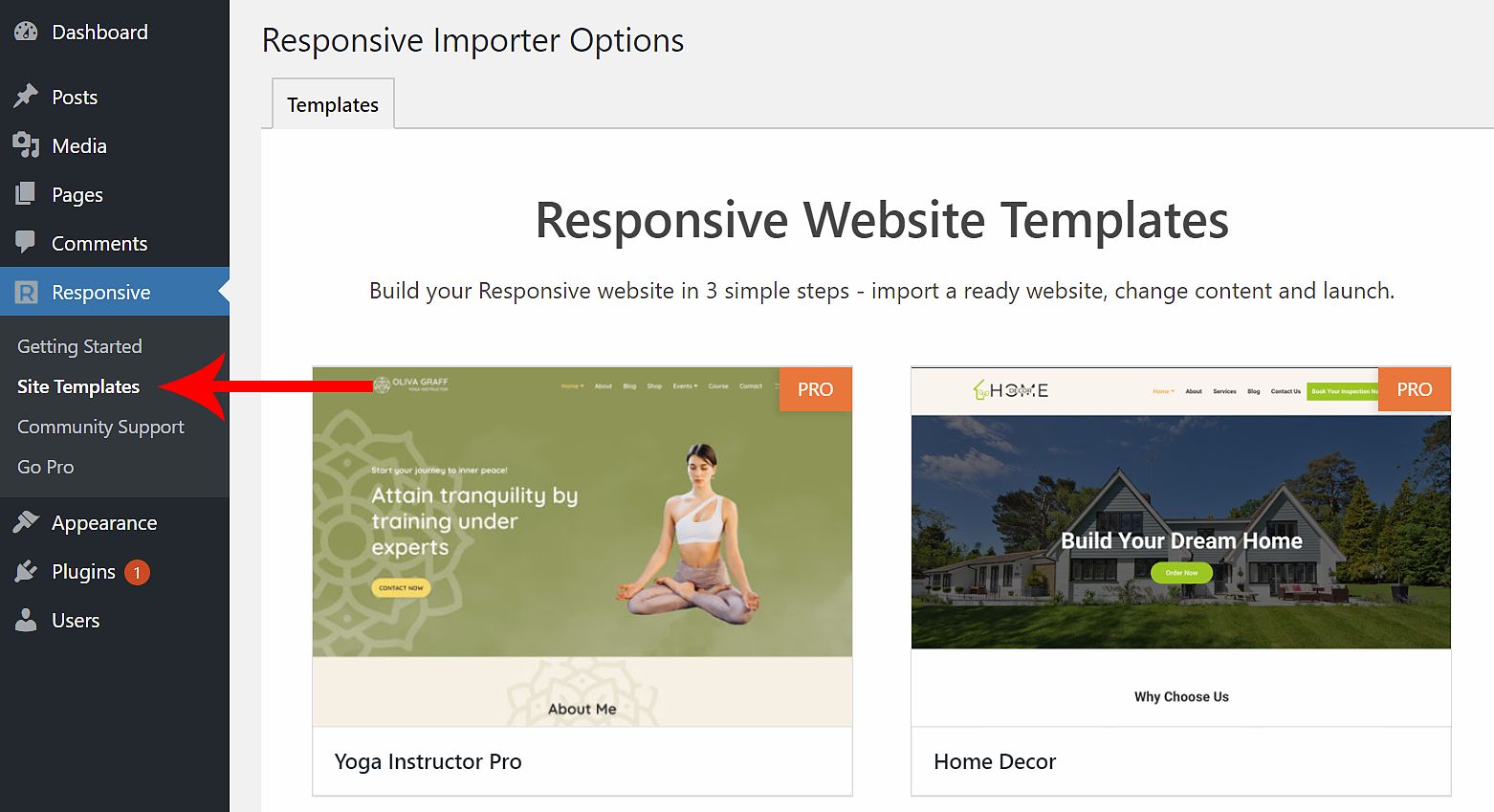
Mouse over any one of it now you can see the preview button. Click on the preview, it's opening up in the large view. Now there you see the import button, click on the import button.
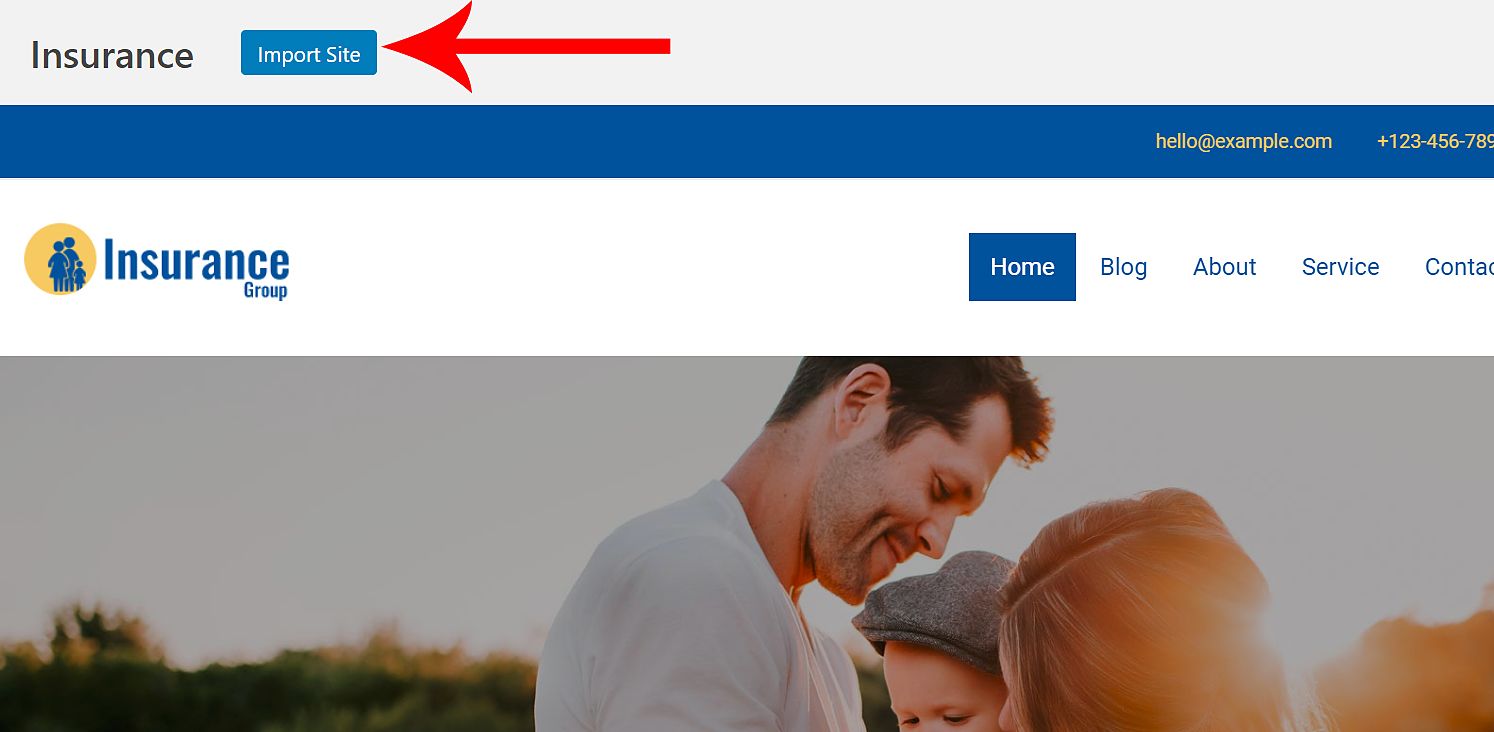
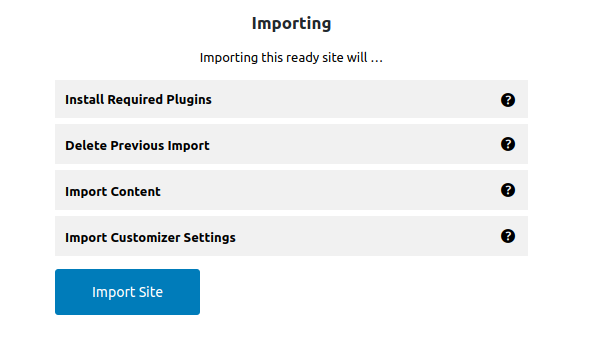
One's you click the import button, the importing process will be started. It will take some time to import.
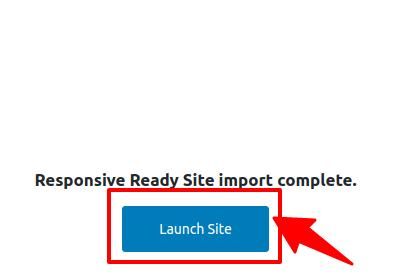
After the import process complete, now you can see the "Launch Site" button which will take you to the newly imported site.
you can also choose to buy Premium WordPress Business themes from reputed theme shops like cyberchimps.com
You can build a beautiful, search-engine-optimized WordPress website with zero design and coding skills with cyberchimps.com WordPress themes.
It also comes with other 35+ ready website templates that are easy to import and customize.
Step 8: Customize your WordPress website with Responsive theme
You are free to customize responsive them or customize the imported templates from "Site Templates". Here I explain how to customize a responsive theme in detail.
WordPress themes are normally very easy to customize. You can customize it yourself without hiring a developer. In the WordPress menu bar, you can see the customize button Under appearance,
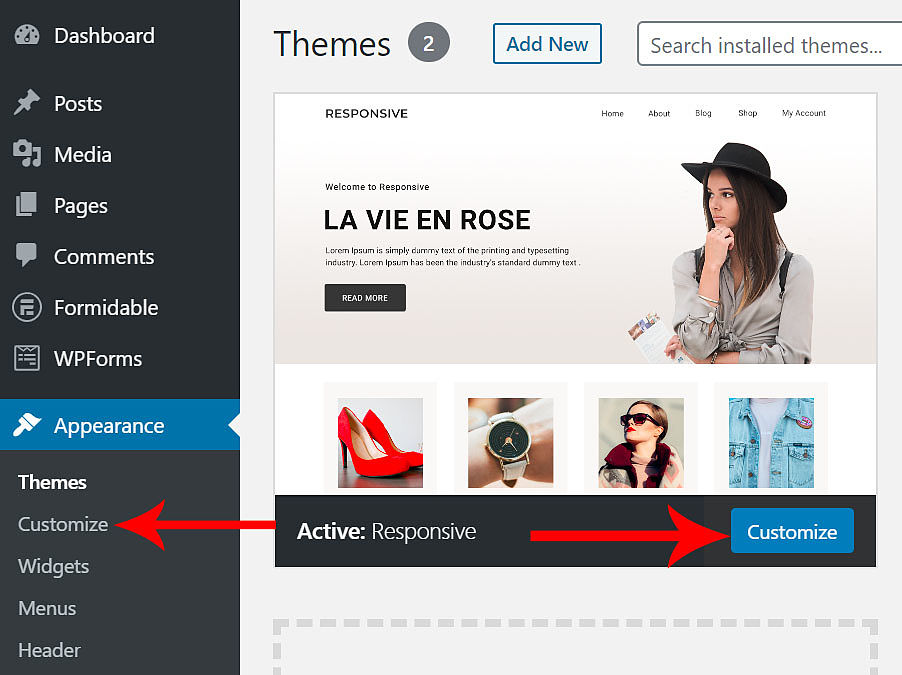
All customize buttons are located in the customizing area.
In the customize area, you can insert your own brand logo, brand name, and tag line. Can be set your home page and blog layout. Editable the Header section of the blog.
Can adjust the overall color of your website. You can be added widgets to the sidebar. Can edit the footer section of the blog. can add the name of pages or posts to the menu bar of your WordPress website.
Please keep in mind. In the customize area you can see the pencil mark blue background, If click on that pencil mark it will be going to that particular section. This one is very useful thing of this responsive theme.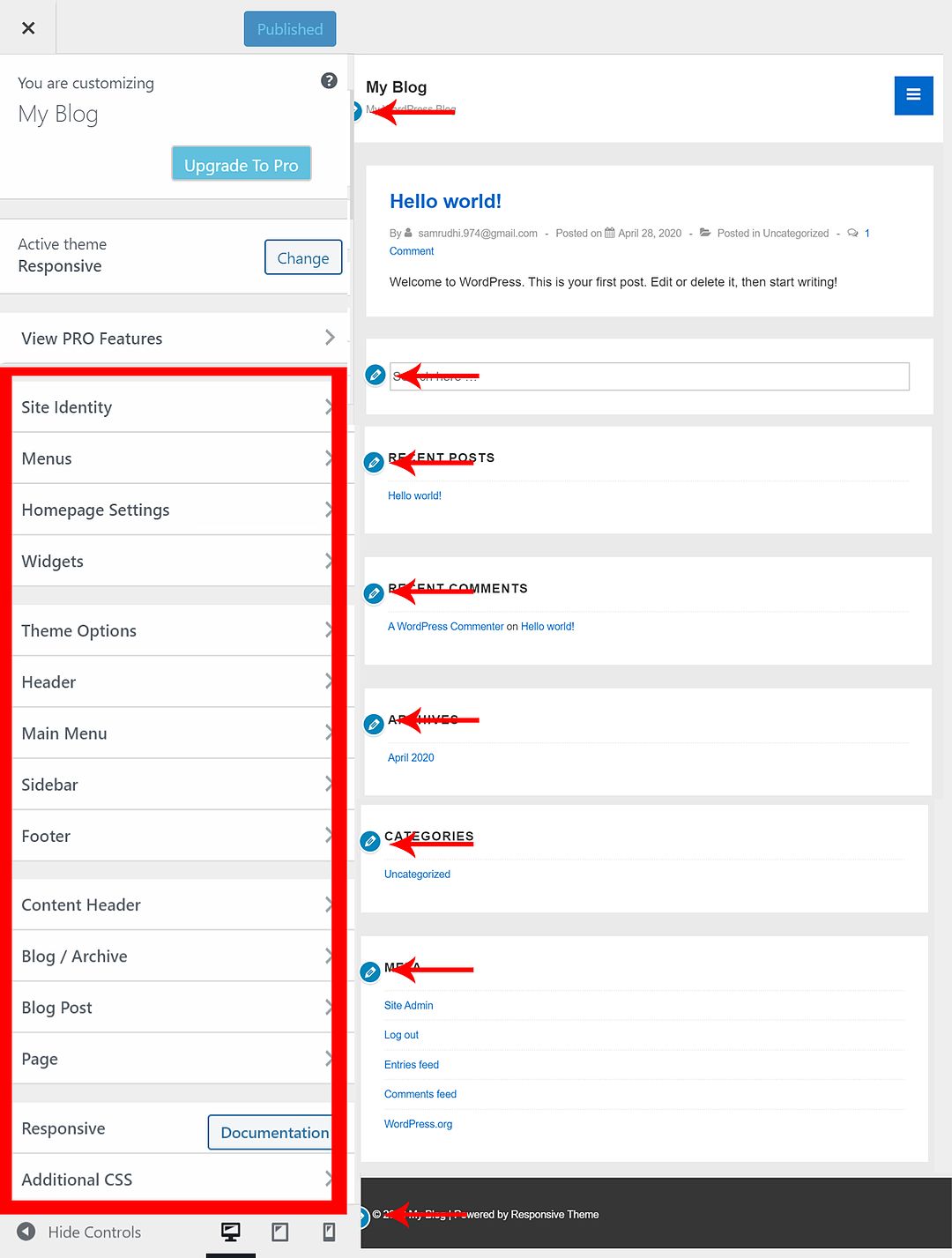
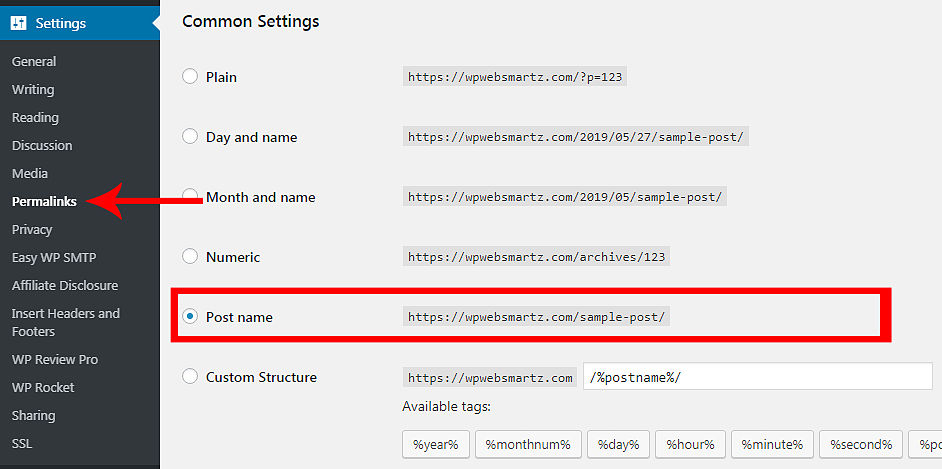
Next, execute some changes in Permalinks. settings – Permalinks You must change your blog post URL. Which is in Day and name mode by default. You switch it into Post name. That’s a good one for SEO result which means indexing on google.
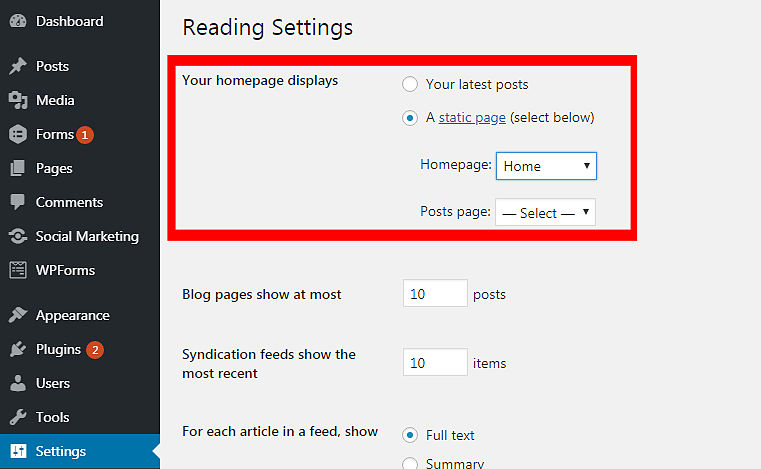
Select your desired home page: This is your website home page you can select for your wish. Which is in Settings > Reading
By default, WordPress does select Your latest posts on the home page. You can make changes as per your wish. Create a home page and select this page as your loading page.
Now create your first post: Under the dashboard button in the sidebar menu click a new post under the post button.
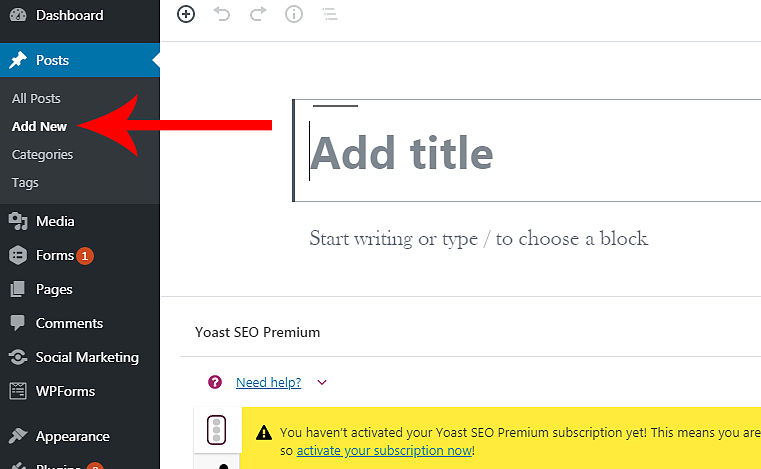
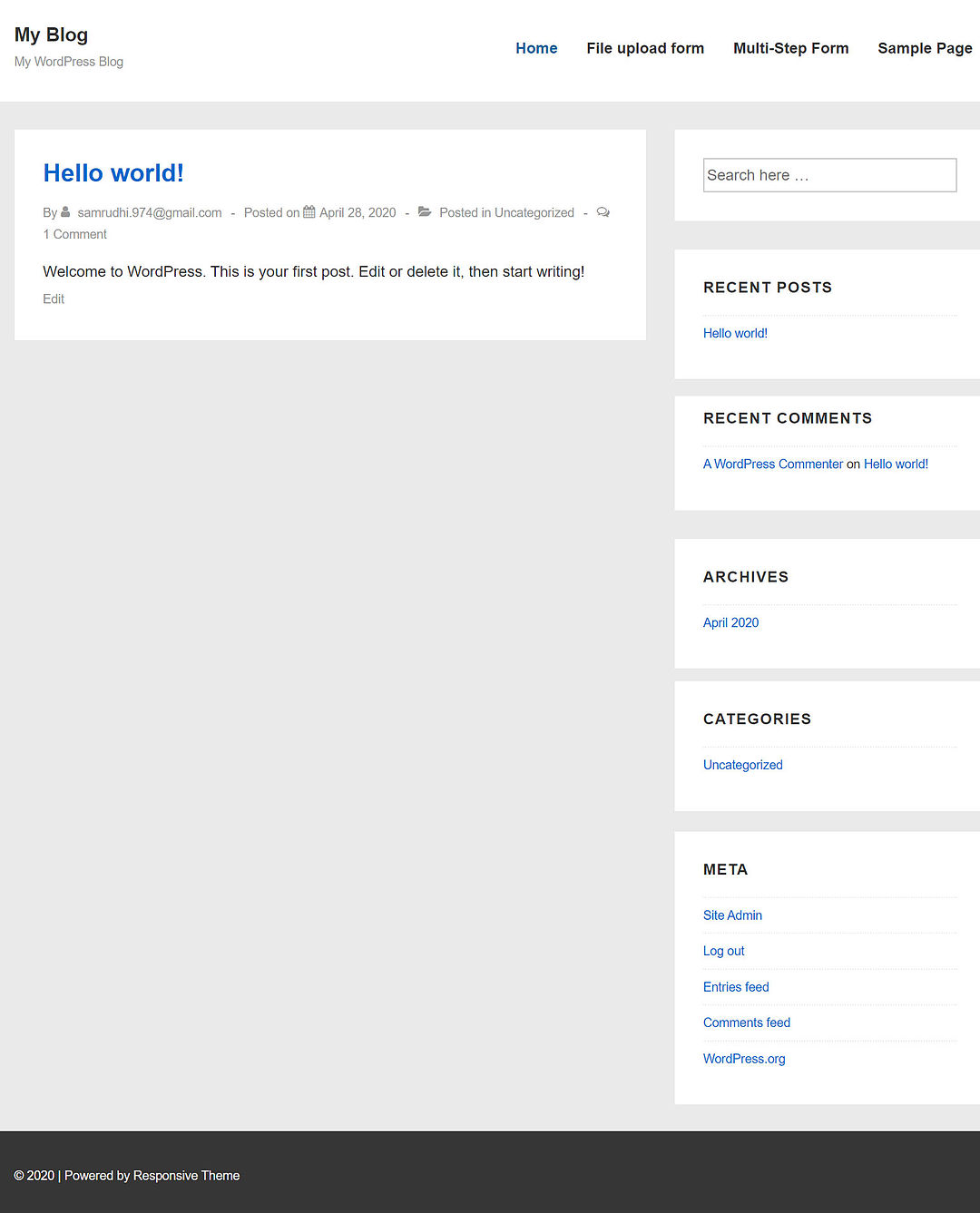
Now finish and ready, your brand new built Responsive theme WordPress website.
Step 9: Differences between blog Page & Post
Pages include Home, About Us, Privacy Policy, Contact Us, and more. The page means a brief about your blog. Posts are your blog niche. Write articles on the Daily or weekly ones on any topics you want. It depends on your skills and what information you have on your niche. Travel, lifestyle, yoga, health are popular topics. My niche is WordPress related articles, I am writing WordPress related posts weekly ones.
What is WordPress blog?
WordPress is a CMS platform to create blog posts regularly WordPress better yet to create blogs?
Yes, 100%, WordPress better choice to creat blog. Because, today WordPress occupying 25% of the internet, which means 25% of Websites run by WordPress.Only at WordPress can create blogs?
No there many other platforms that are there on the internet like Joomla, Drupal, Wix, etc.
Can i make money from blog?
Yes, But it depend on your overall skills, information’s
Step 10: Install some must needed WordPress Plugin to your brand new blog
1. Yoast SEO
Yoast SEO is the main Recommended WordPress Plugins SEO plugin for your WordPress site. It handles all that you require for a quality on-page streamlining. Moreover, you get a moment SEO score for each post or page you make. It underpins other major WordPress modules, for example, WooCommerce for instance.
2. Elementor
Recommended WordPress Plugin Elementor is the quickest live page developer for WordPress. It definitely accelerates your web architecture work process, and let you plan any page without coding. With a wide cluster of export formats, propelled portable altering instruments and a considerable rundown of other helpful highlights, it is an unquestionable requirement have plugins that will supercharge your web architecture
4. BackupBuddy.
BackupBuddy is a premium WordPress Recommended WordPress Plugins that gives you a steady and simple approach to reinforcement and exchanges your destinations with various choices to store your chronicles including Dropbox, Amazon, and so forth.
5. Jetpack
This is a far-reaching module that contains an extensive variety of highlights: notices in your toolbar, interface site to interpersonal organizations and consequently share, see compact details, enable memberships to your presence on getting warnings, share content with Facebook, Twitter and that’s just the beginning.
6. Akismet
Another Recommended WordPress Plugins Akismet stops the spam messages in your blog remarks. Any messages perceived as blog spam get recorded in the Akismet web administration and online journals everywhere throughout the world wide up safe against it.